

Google Translate API for auto translation
Google translation is integrated with the OptiBiz CRM to get auto-translation of languages.
You will need the Google Translate API key to get integrate the auto-translation.
Follow these steps to get an API key:
- Go to the Google Cloud Console.
- Create or select a project.
- Enable the Cloud Translation API. Note: You must enable billing to use Cloud Translation.
- On the Credentials page, get an API key (and set the API key restrictions). Note: If you have an existing unrestricted API key or a key with browser restrictions, you may use that key.
- To prevent quota theft and secure your API key, see Using API Keys.
You need to enter the API key in Language Settings >> Auto Translate Setting
Section titled “You need to enter the API key in Language Settings >> Auto Translate Setting”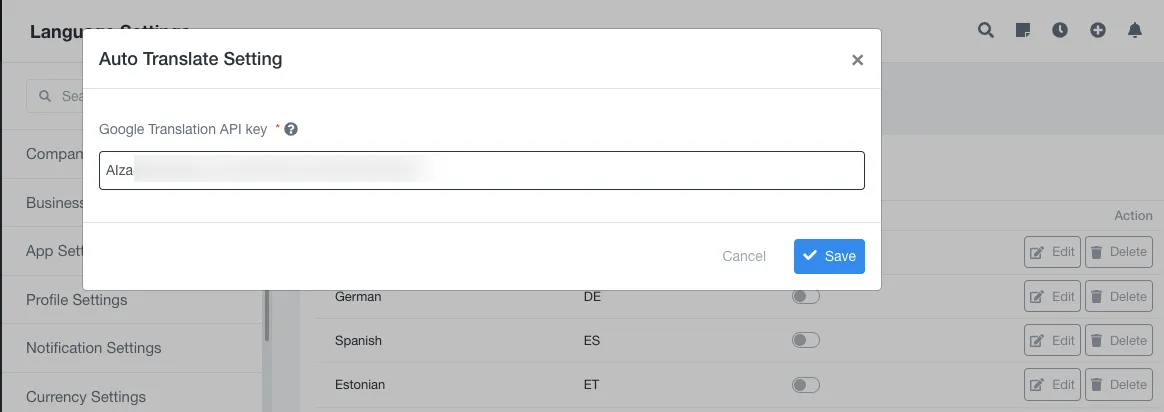
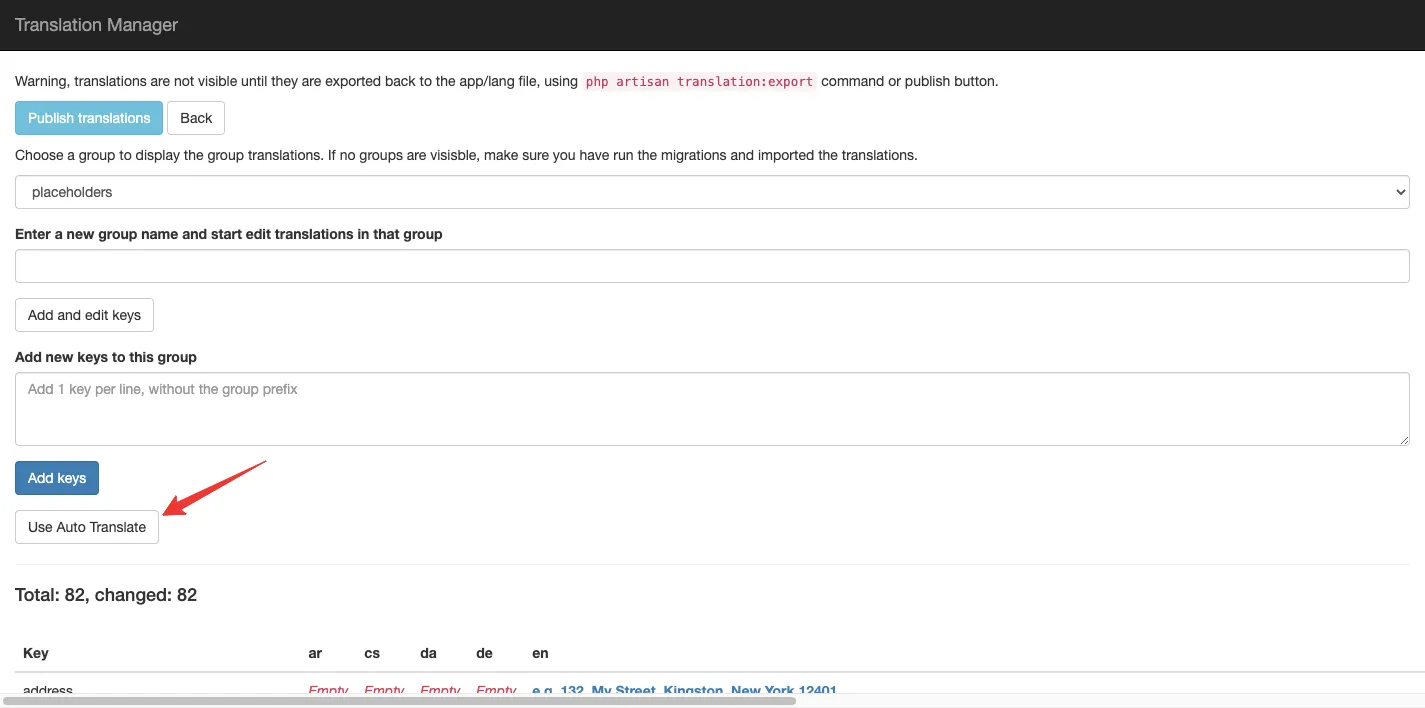
Now go to the translation manager and select the group that you want to translate.
Click on Use Auto Translate
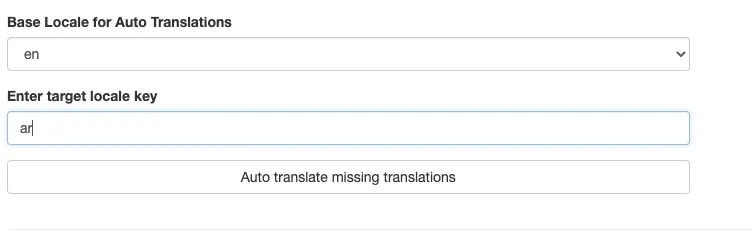
Enter target locale key and click on Auto translate missing translations
Now your translations are ready.
document.querySelectorAll(‘.portal-attachment-thumbnail-img’).forEach(function(img) {
img.addEventListener(‘error’, function () {
attachment_error_image(this);
});
});
const attachment_error_image = (attachment) => {
const parentElement = attachment.parentElement;
const defaultIcon = <span class="icon-file-empty"></span><span class="fw-attachment-ext">${escapeHtml(attachment.dataset.extension)}</span>;
parentElement.innerHTML = defaultIcon;
};