

Quickbooks OptiBiz CRM Integration
OptiBiz CRM enables a one-way sync of invoices and their payments to your Quickbooks Account.
Section titled “OptiBiz CRM enables a one-way sync of invoices and their payments to your Quickbooks Account.”This means when you create an invoice or record a payment for the invoice, an Invoice or its Payment will be made on the Quickbooks account too.
Step 1: Create an app on the Intuit Developer Portal
Section titled “Step 1: Create an app on the Intuit Developer Portal”The apps you create on our developer portal generate unique credentials and info you’ll need during development.
- Sign into your developer account.
- Select the Dashboard tab on the toolbar.
- Go to the Apps tab.
- Select + Create an app.
- Follow the on-screen steps.
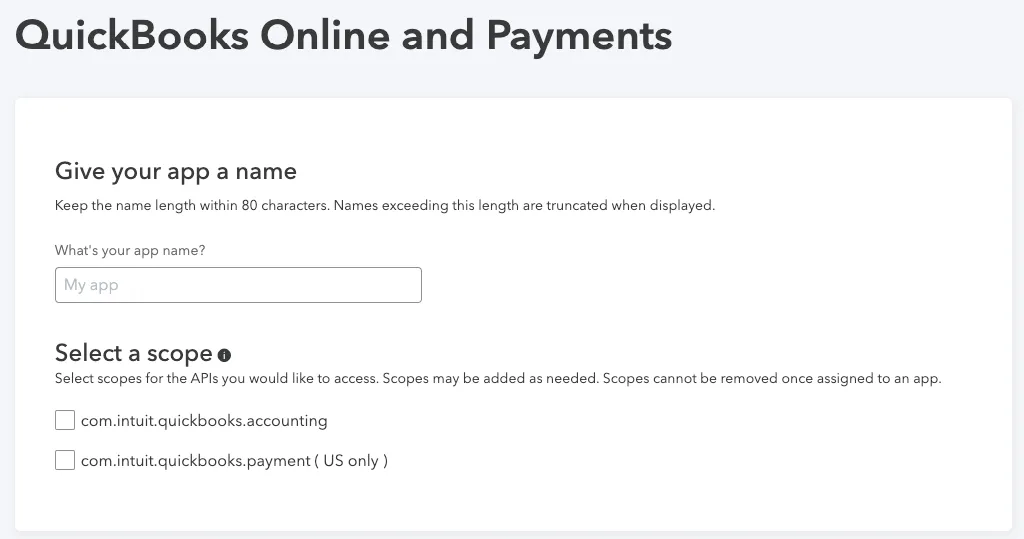
To integrate Quickbooks with OptiBiz CRM you will needa Client ID and Client Secret Keys.
Section titled “To integrate Quickbooks with OptiBiz CRM you will needa Client ID and Client Secret Keys.”Step 2: Get your app’s credentials
Section titled “Step 2: Get your app’s credentials”- Sign in to your developer account.
- Select the Dashboard link on the toolbar.
- Select and open an app.
- If you’re connecting a sandbox company, go to the Development section. Then select Keys & OAuth.
- If you’re setting up a production app, go to the Production section. Then select Keys & OAuth.
- Copy the Client ID and Client Secret.
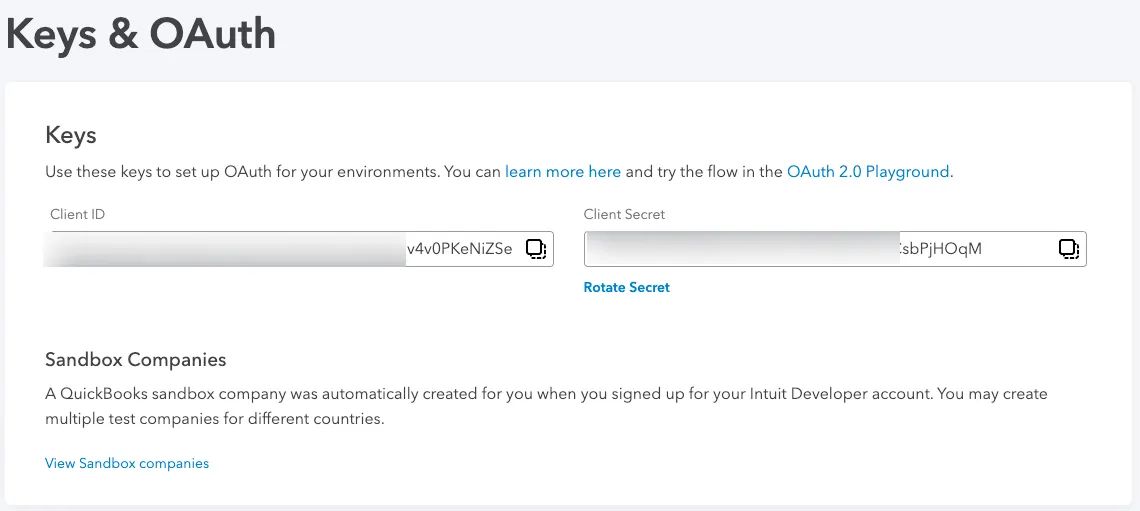
Step 3: Enter Redirect URIs in Quickbooks App Settings
Section titled “Step 3: Enter Redirect URIs in Quickbooks App Settings”- Go to Settings -> Finance Settings-> Quickbooks Tab
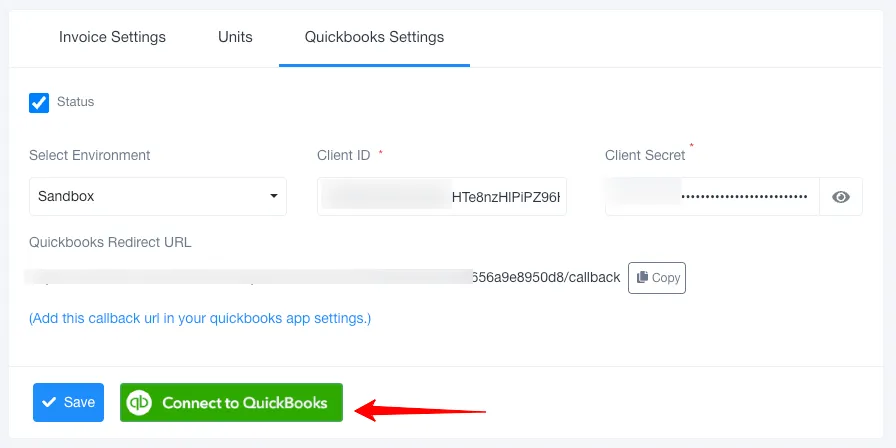
- Copy the Quickbooks Redirect URL
- Paste the Redirect URL in Quickbooks Keys page
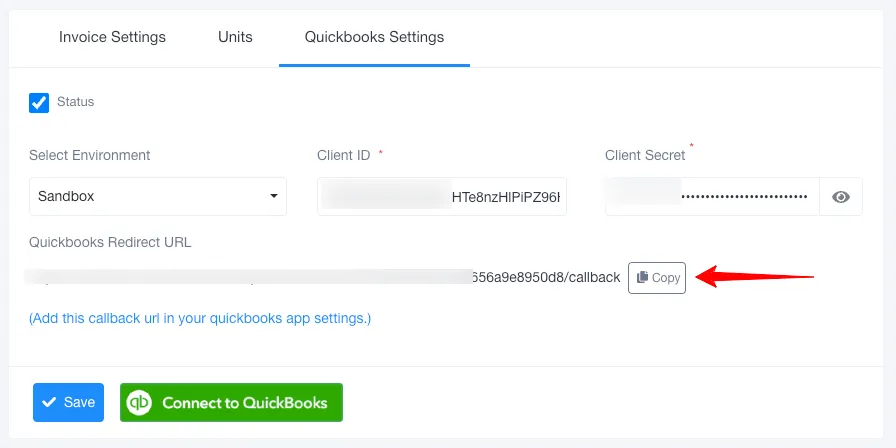
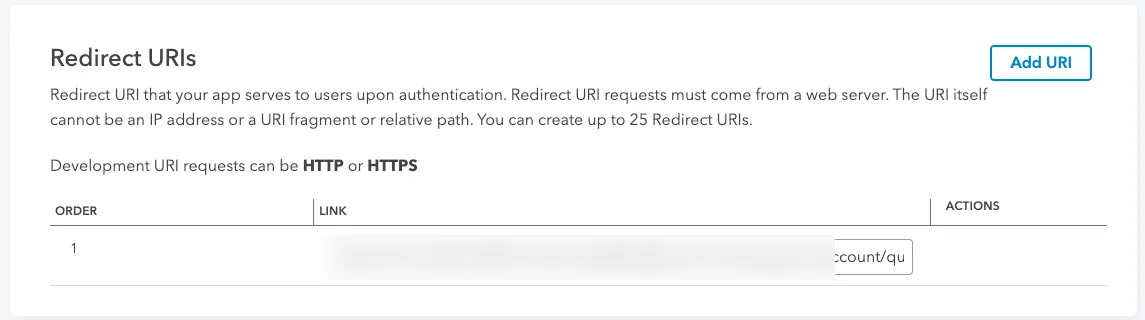
Step 4: Enter credentials in OptiBiz CRM
Section titled “Step 4: Enter credentials in OptiBiz CRM”- Go to Settings -> Finance Settings-> Quickbooks Tab
- Select the environment and paste the Client ID and Client Secret
- Click Save button
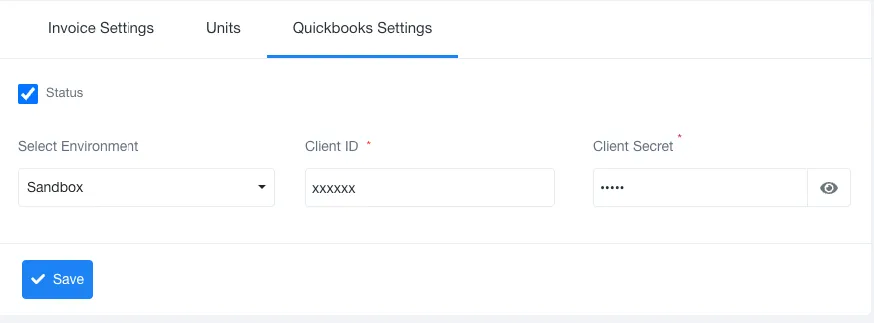
Step 5: Connect Quickbooks Account
Section titled “Step 5: Connect Quickbooks Account”- Go to Settings -> Finance Settings-> Quickbooks Tab
- Click on the Connect Quickbooks Account button
- That’s It !! Quickbooks Integration is complete.
Also, turn ON multicurrency in QuickBooks settings.
Section titled “Also, turn ON multicurrency in QuickBooks settings.”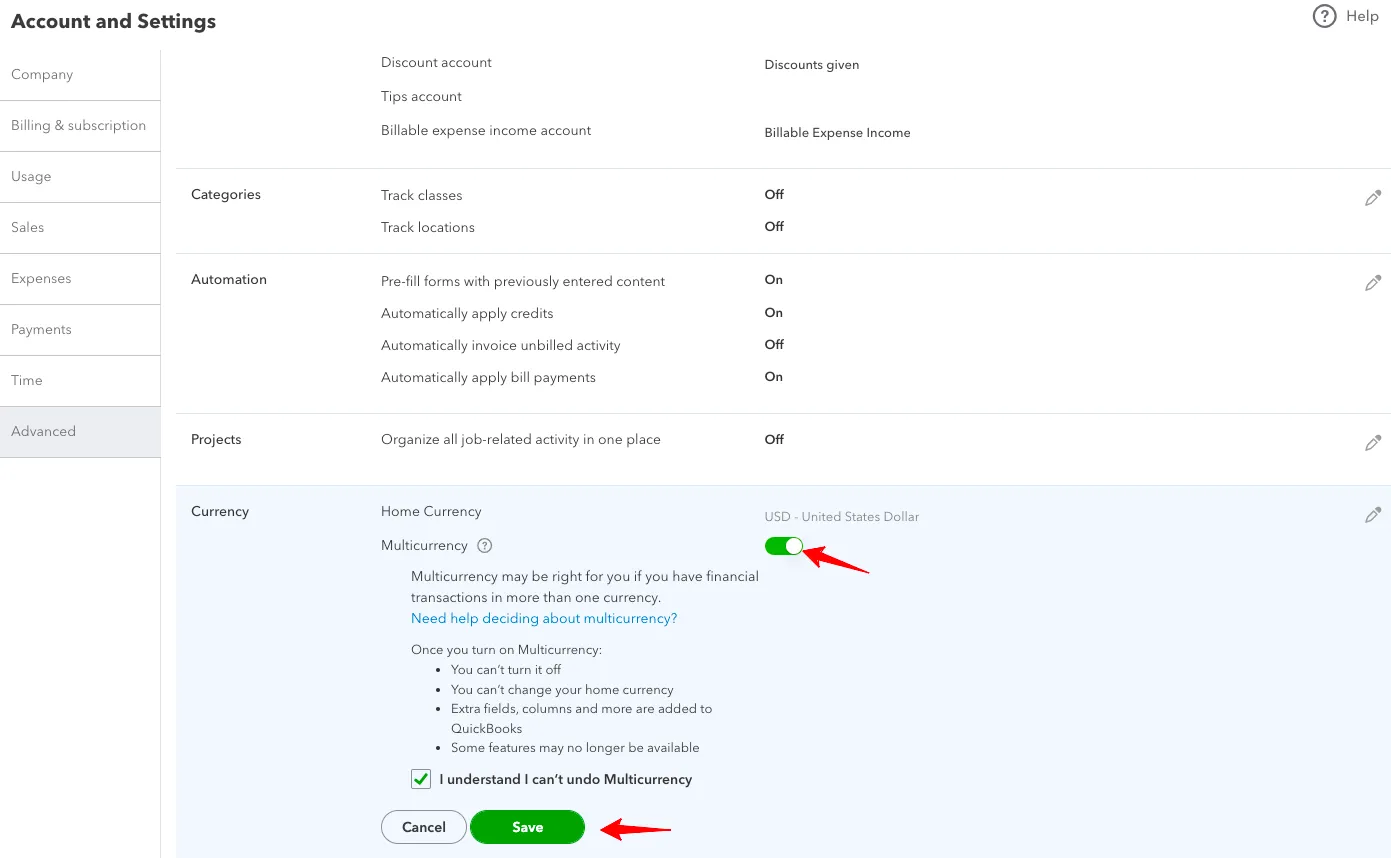
document.querySelectorAll(‘.portal-attachment-thumbnail-img’).forEach(function(img) {
img.addEventListener(‘error’, function () {
attachment_error_image(this);
});
});
const attachment_error_image = (attachment) => {
const parentElement = attachment.parentElement;
const defaultIcon = <span class="icon-file-empty"></span><span class="fw-attachment-ext">${escapeHtml(attachment.dataset.extension)}</span>;
parentElement.innerHTML = defaultIcon;
};