

OptiBiz CRM Zoom Module Integration
Once the zoom module is installed we need to configure it.
Create an app on Zoom
Section titled “Create an app on Zoom”-
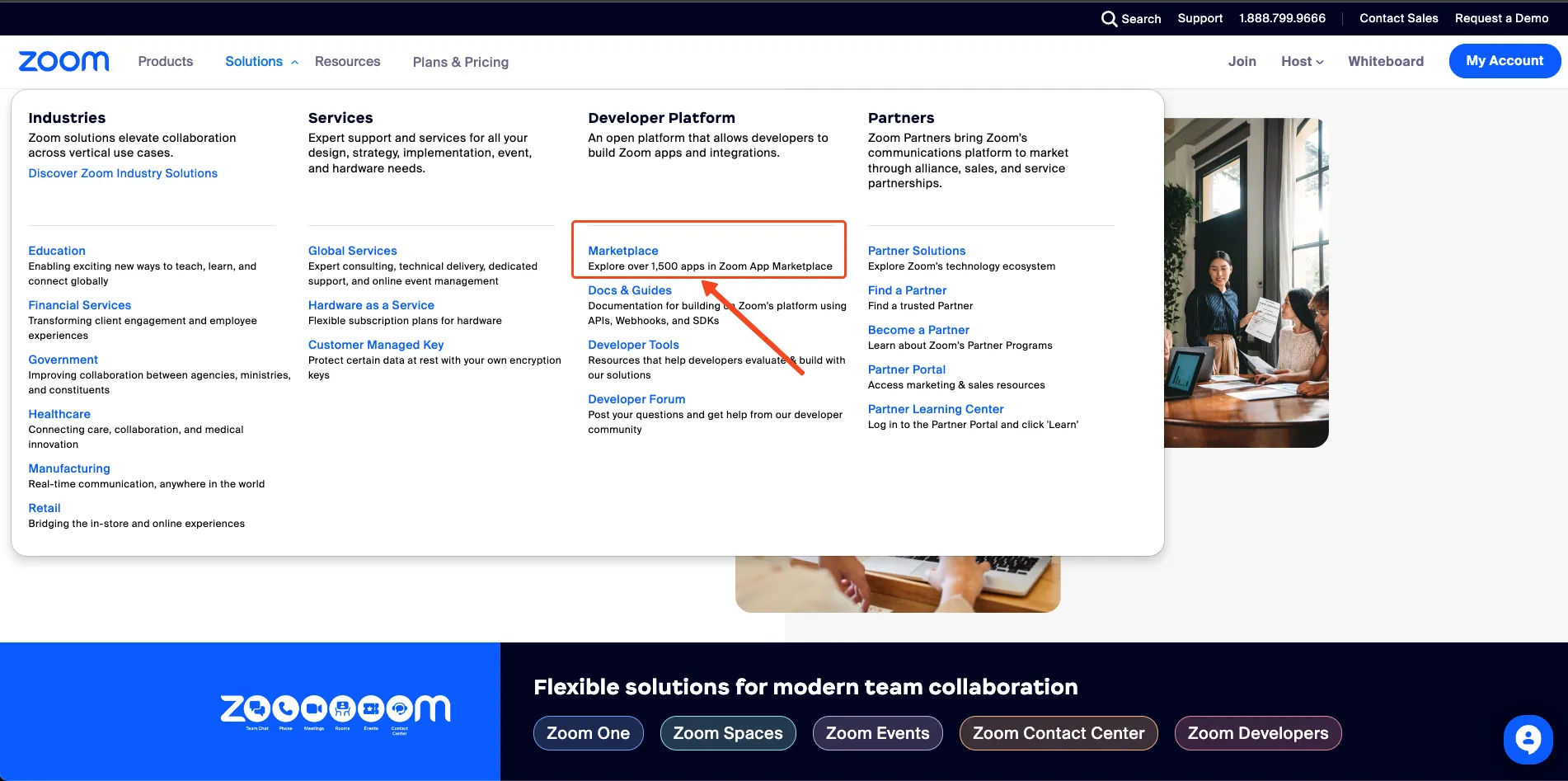
Log in to your zoom account and go to Marketplace from the Solutions menu dropdown
-
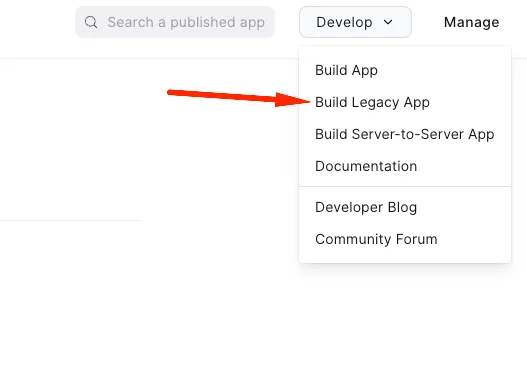
On the marketplace page, select Build App from the Develop dropdown
-
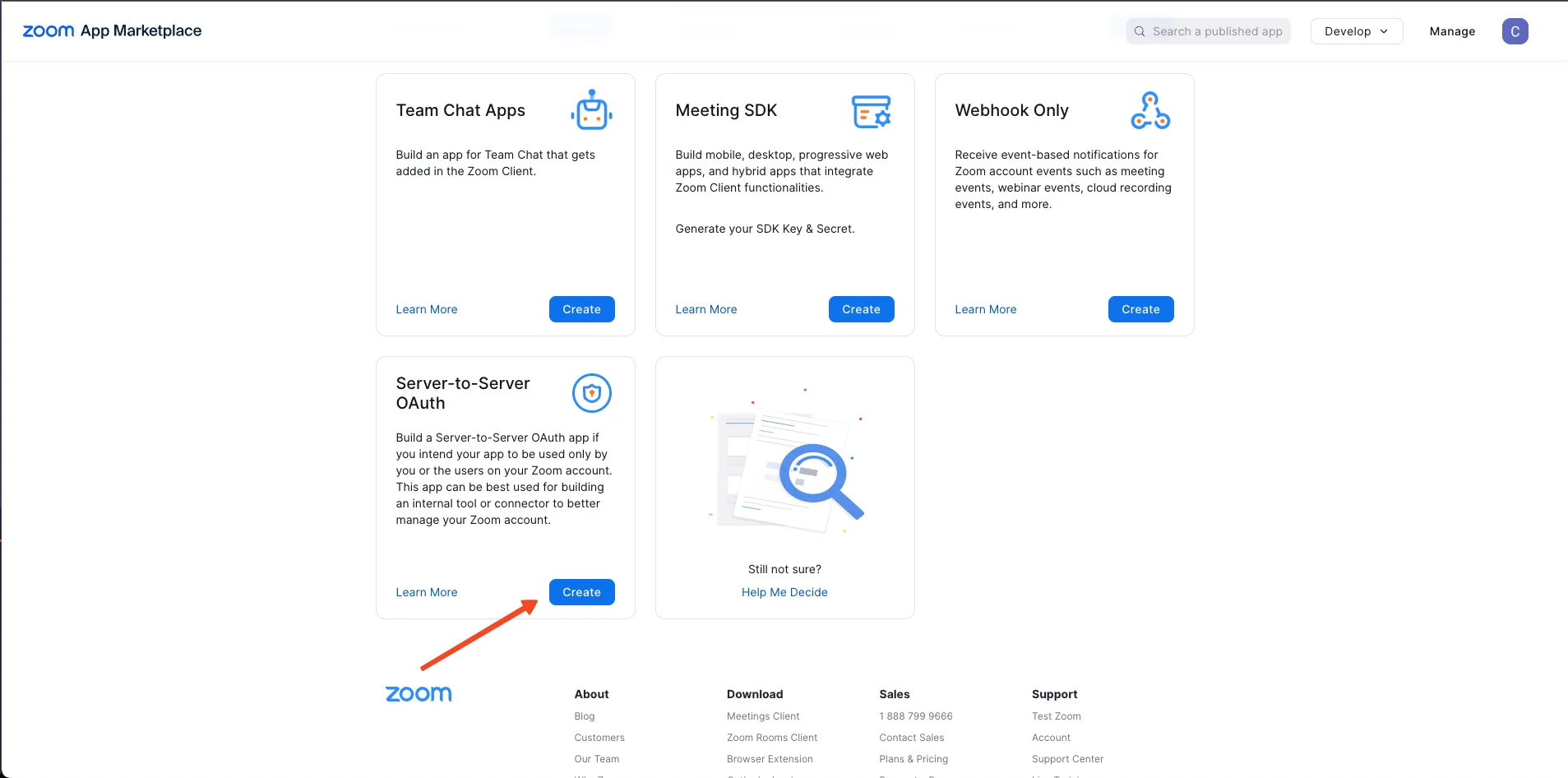
Click the Create button on the Server-to-Server OAuth section
-
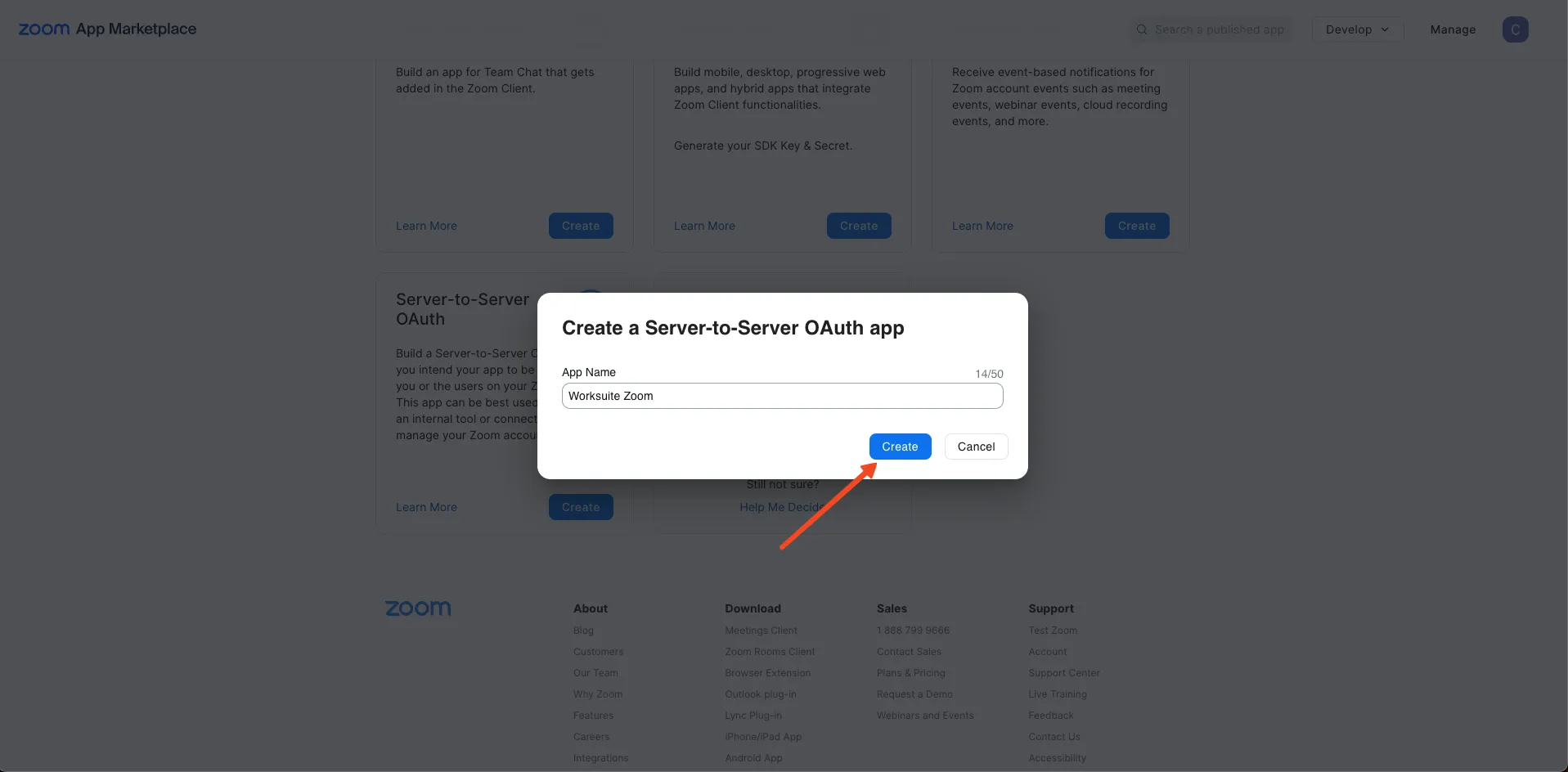
Add the name of the app and click the Create button
-
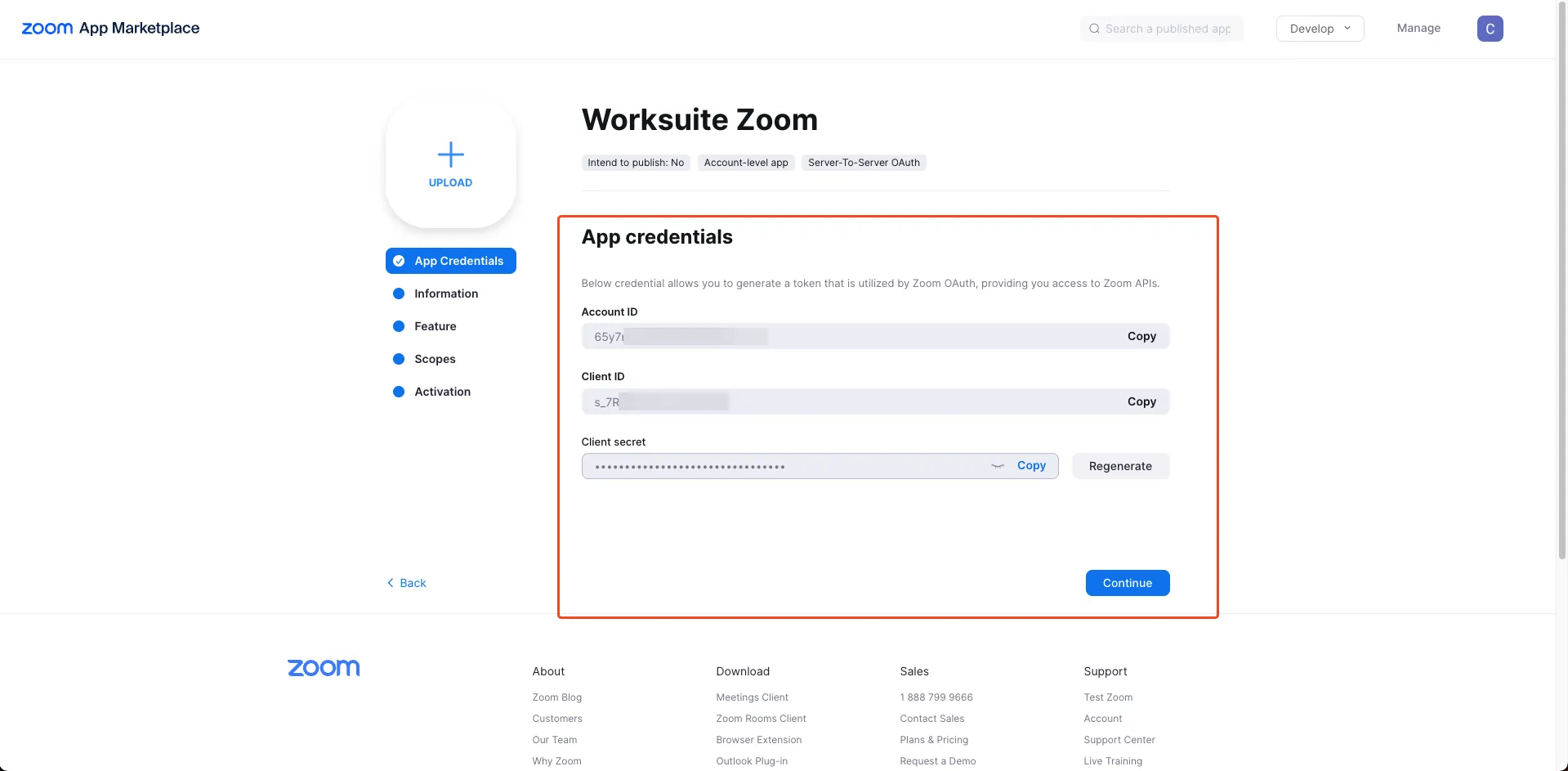
App credentials are generated automatically click Continue
-
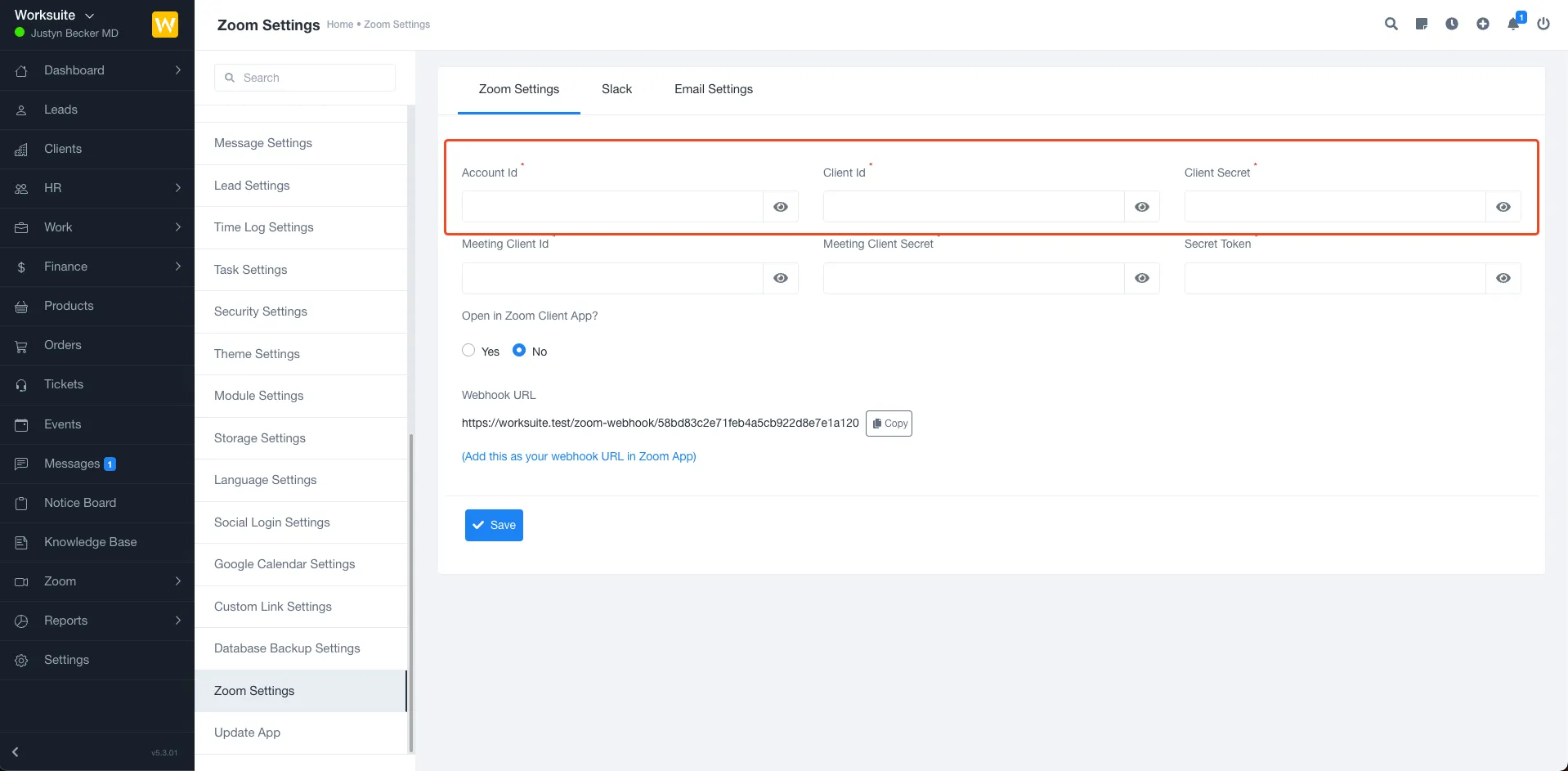
Add these credentials on Application
-
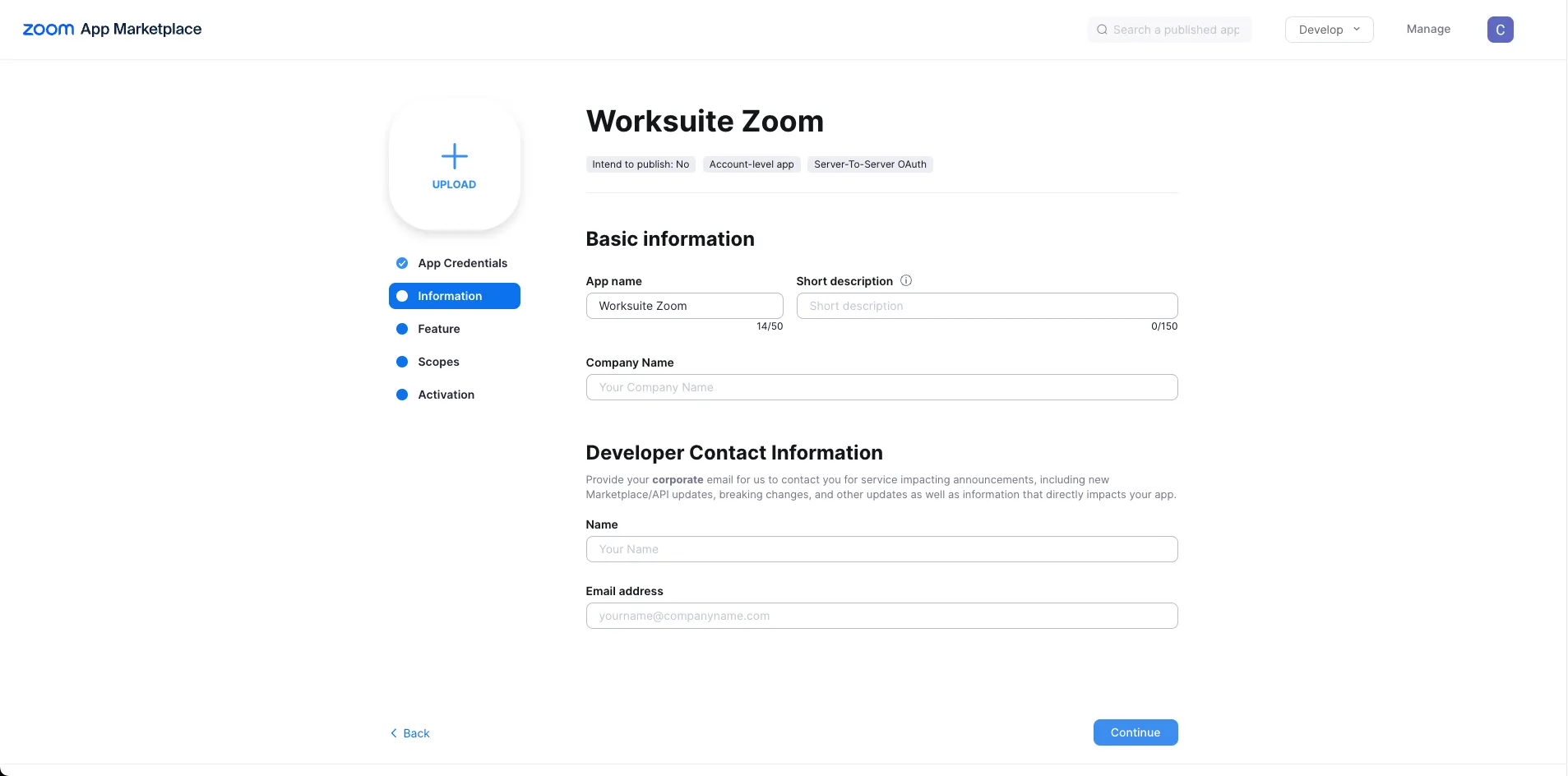
Add information for the app and click Continue
-
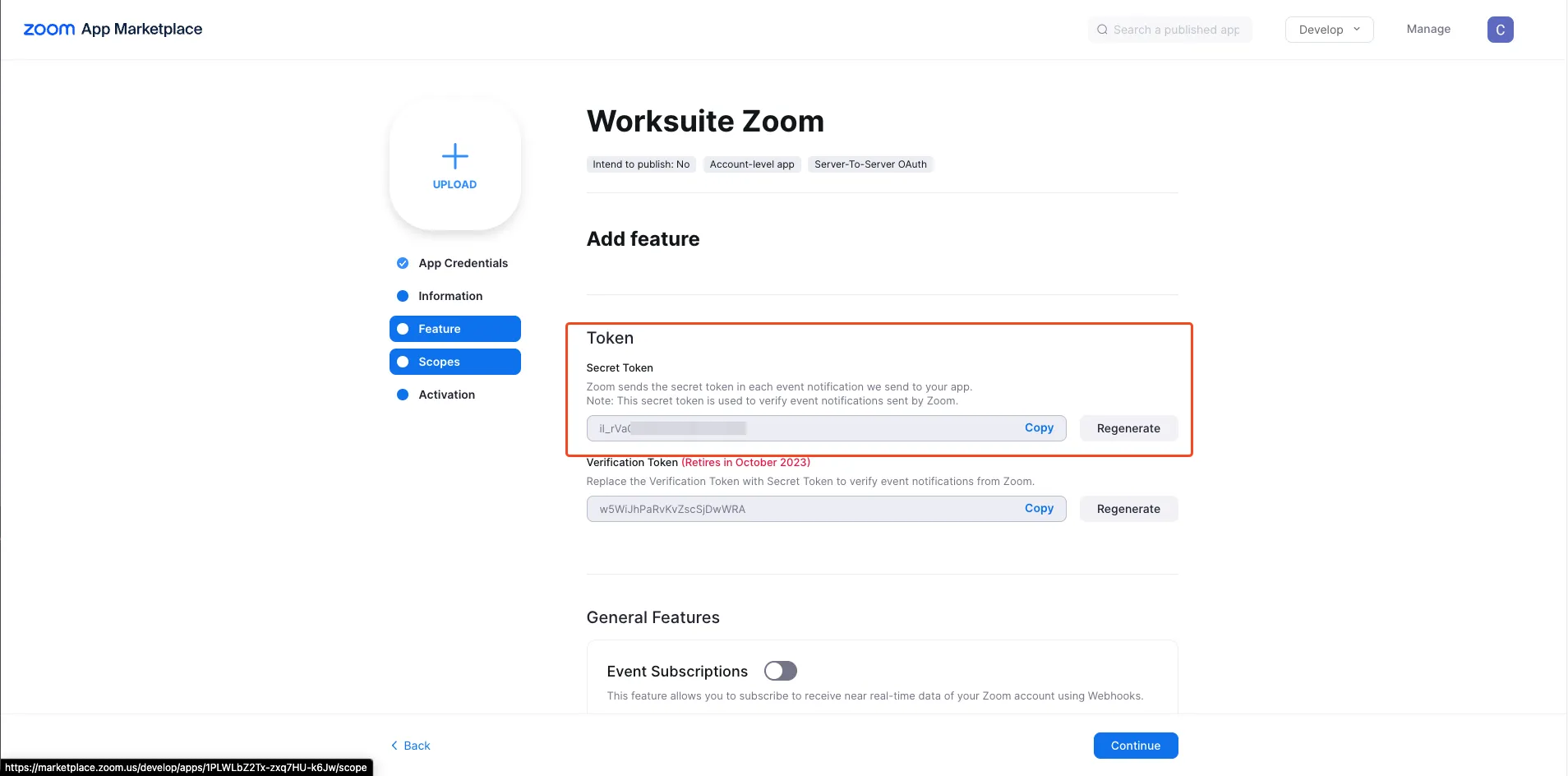
Here is your Secret Token and Turn on Event Subscriptions
-
Add this on Application
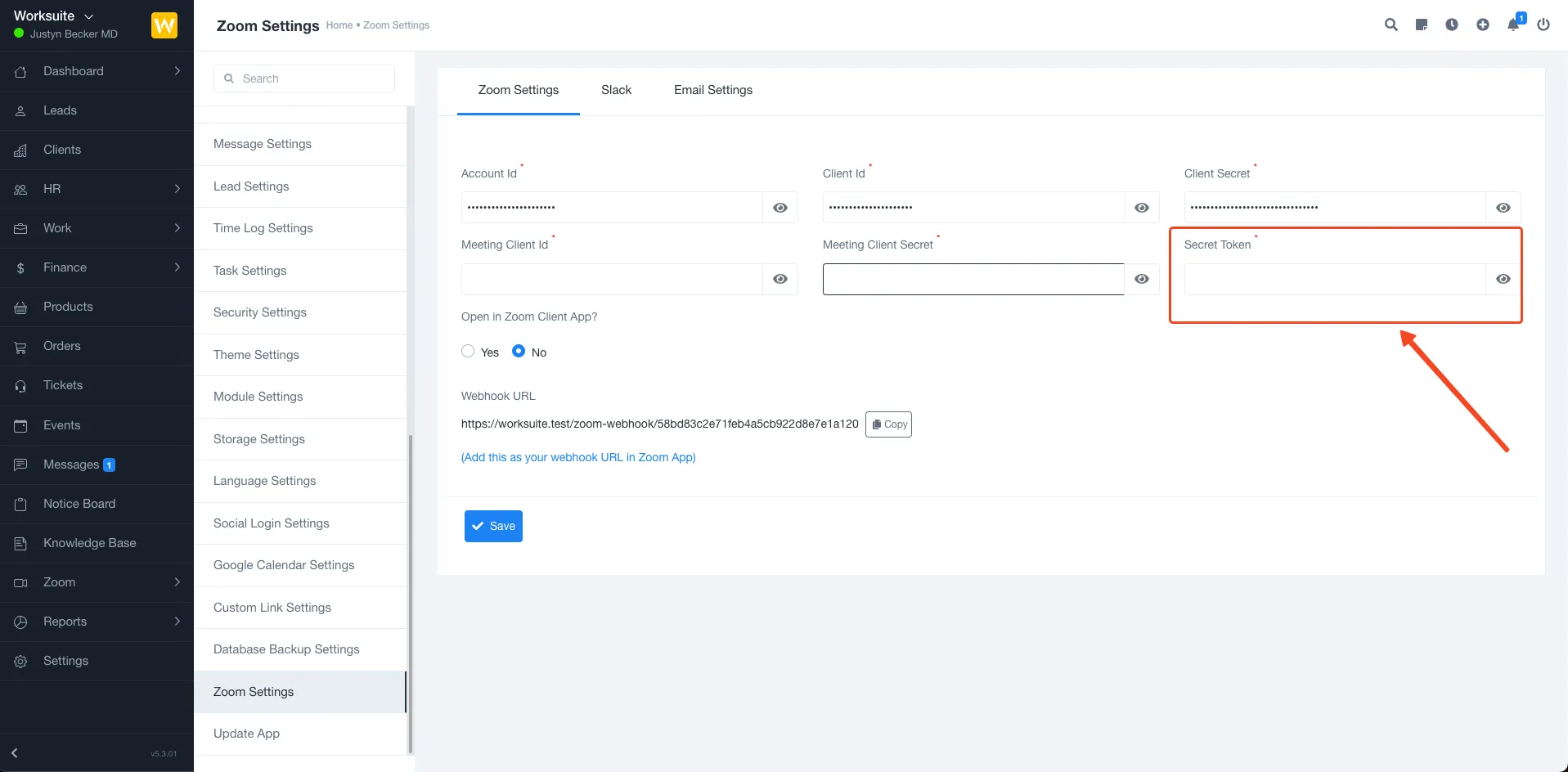
-
Turn on Event Subscriptions
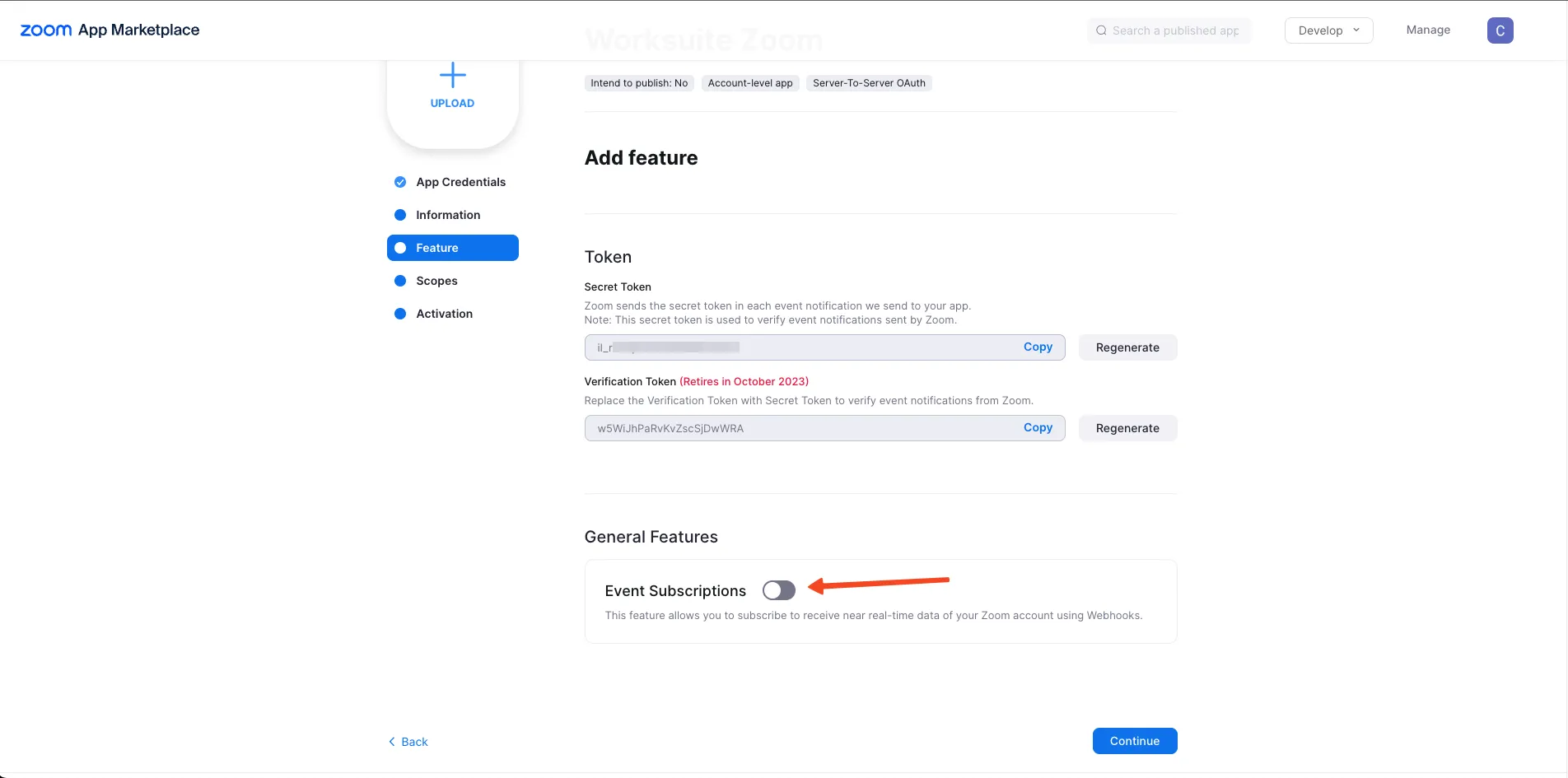
-
Click on Add Event Subscription
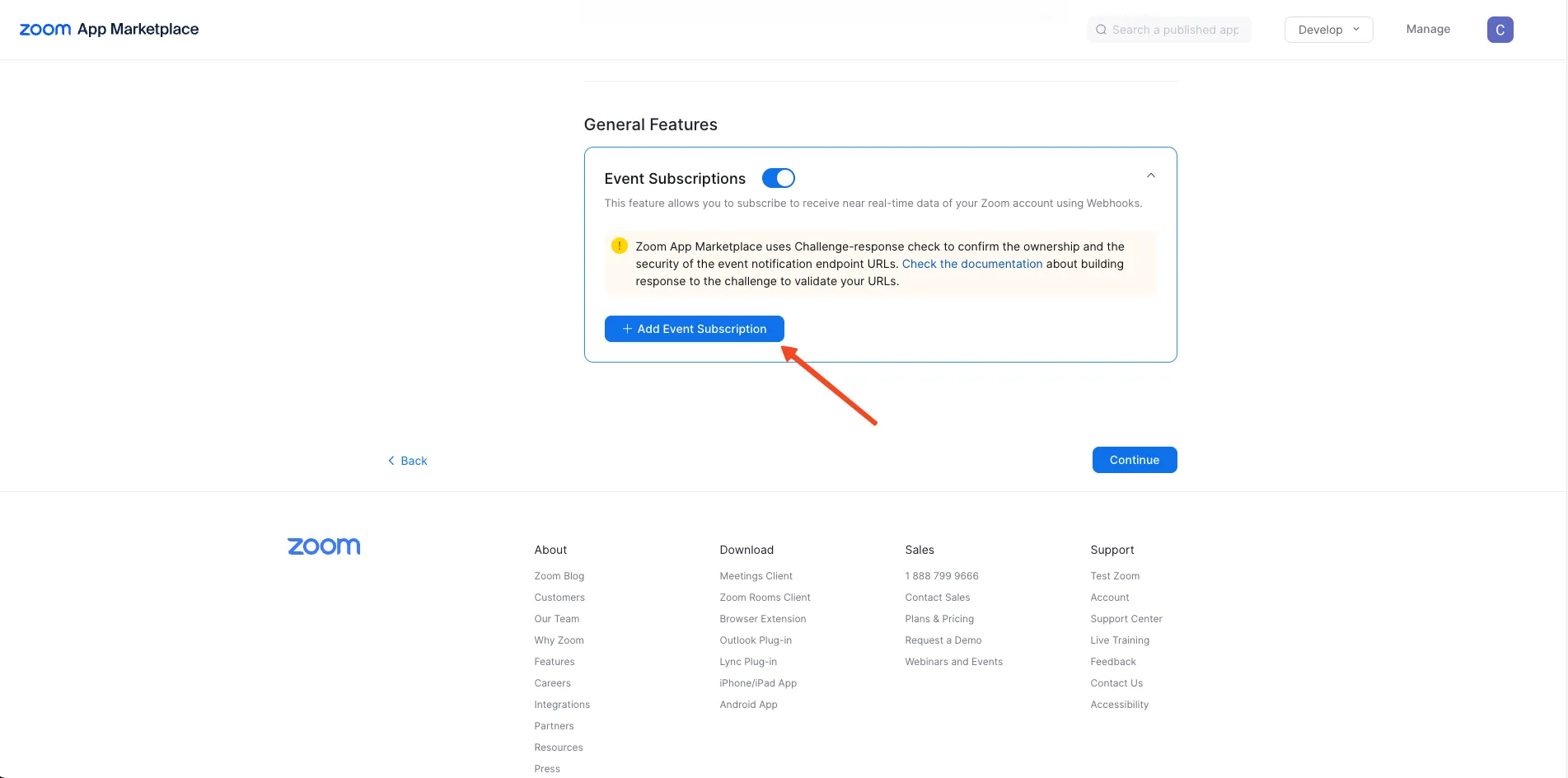
-
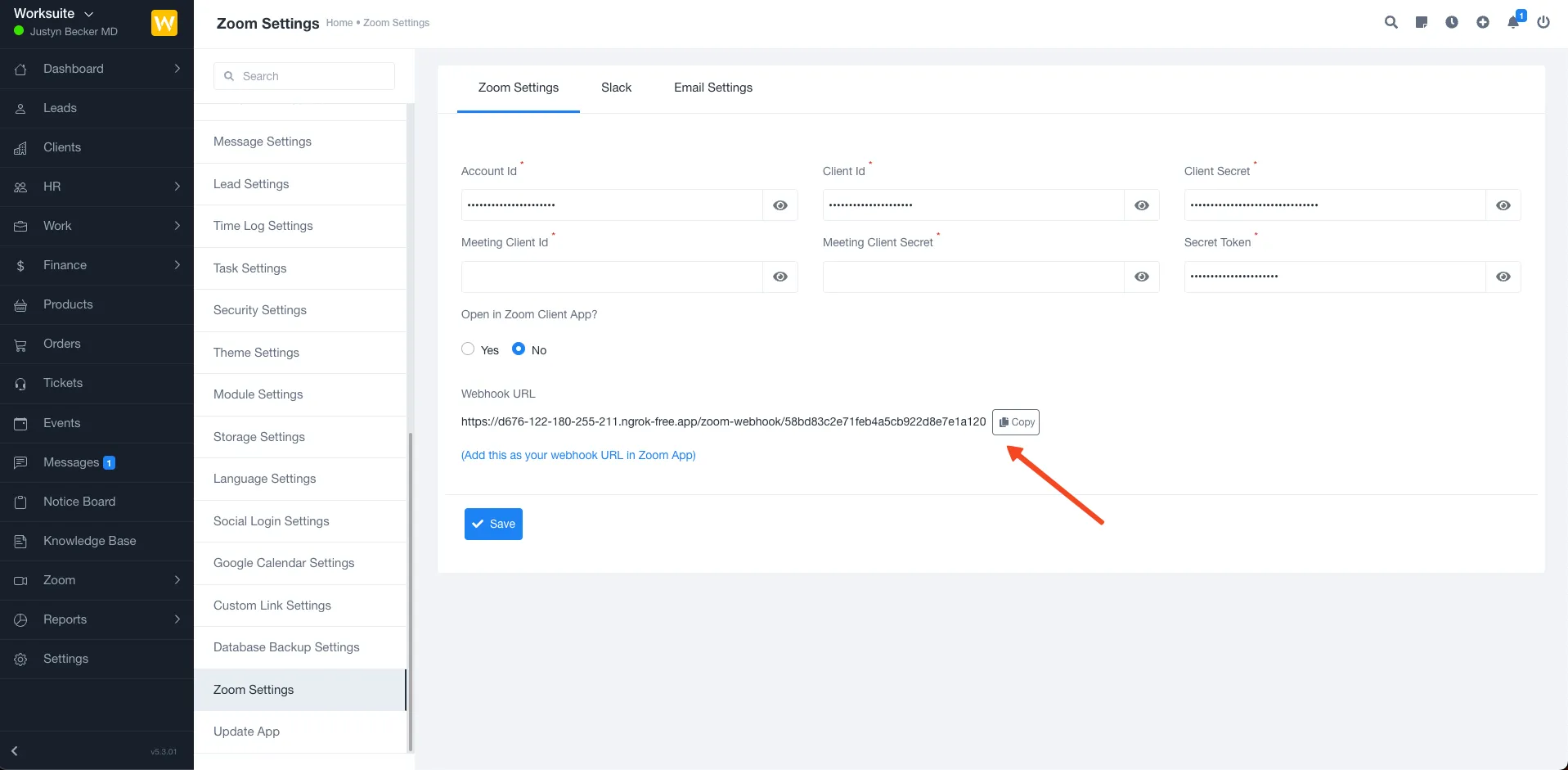
Add webhook url from application
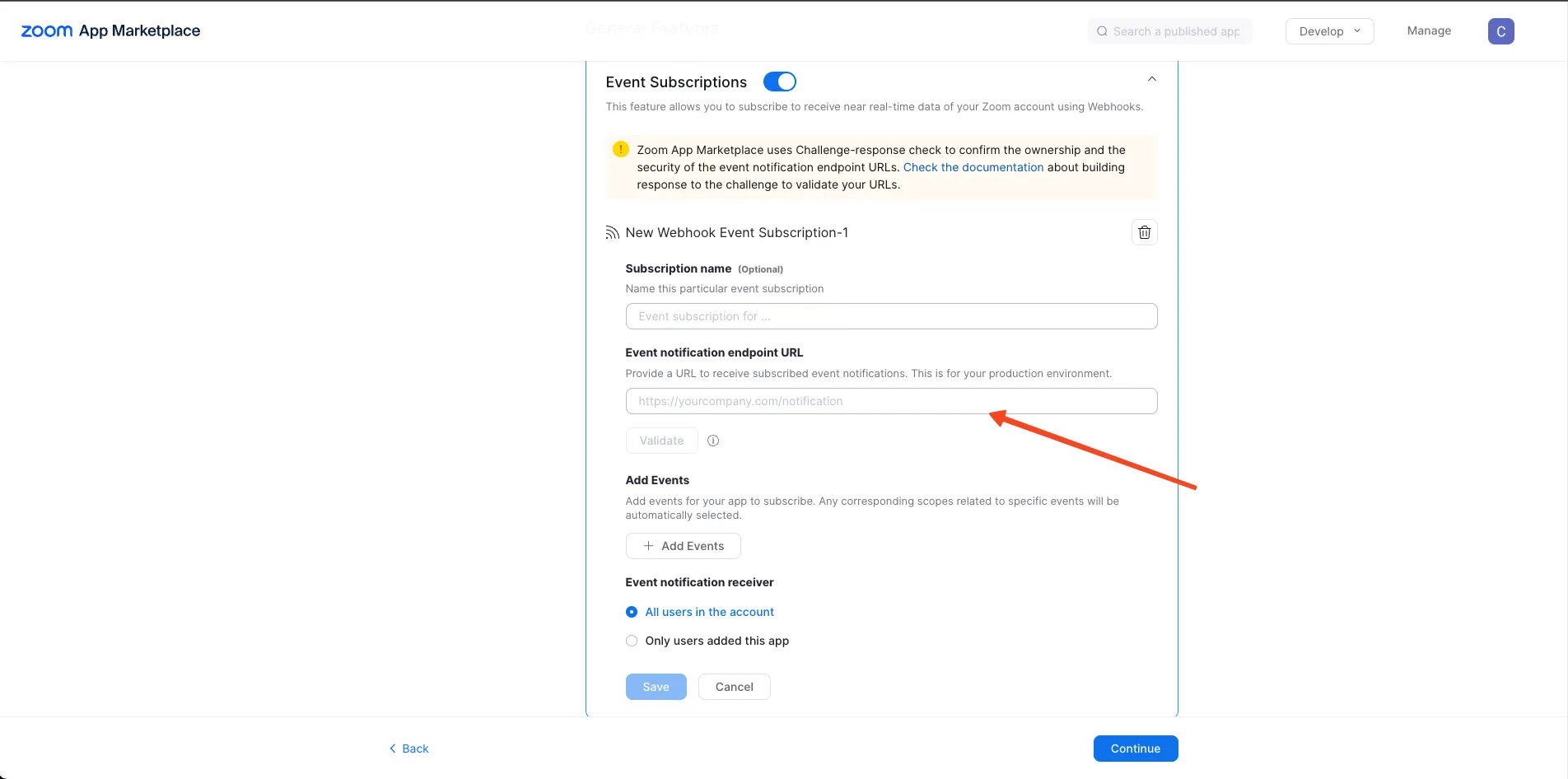
-
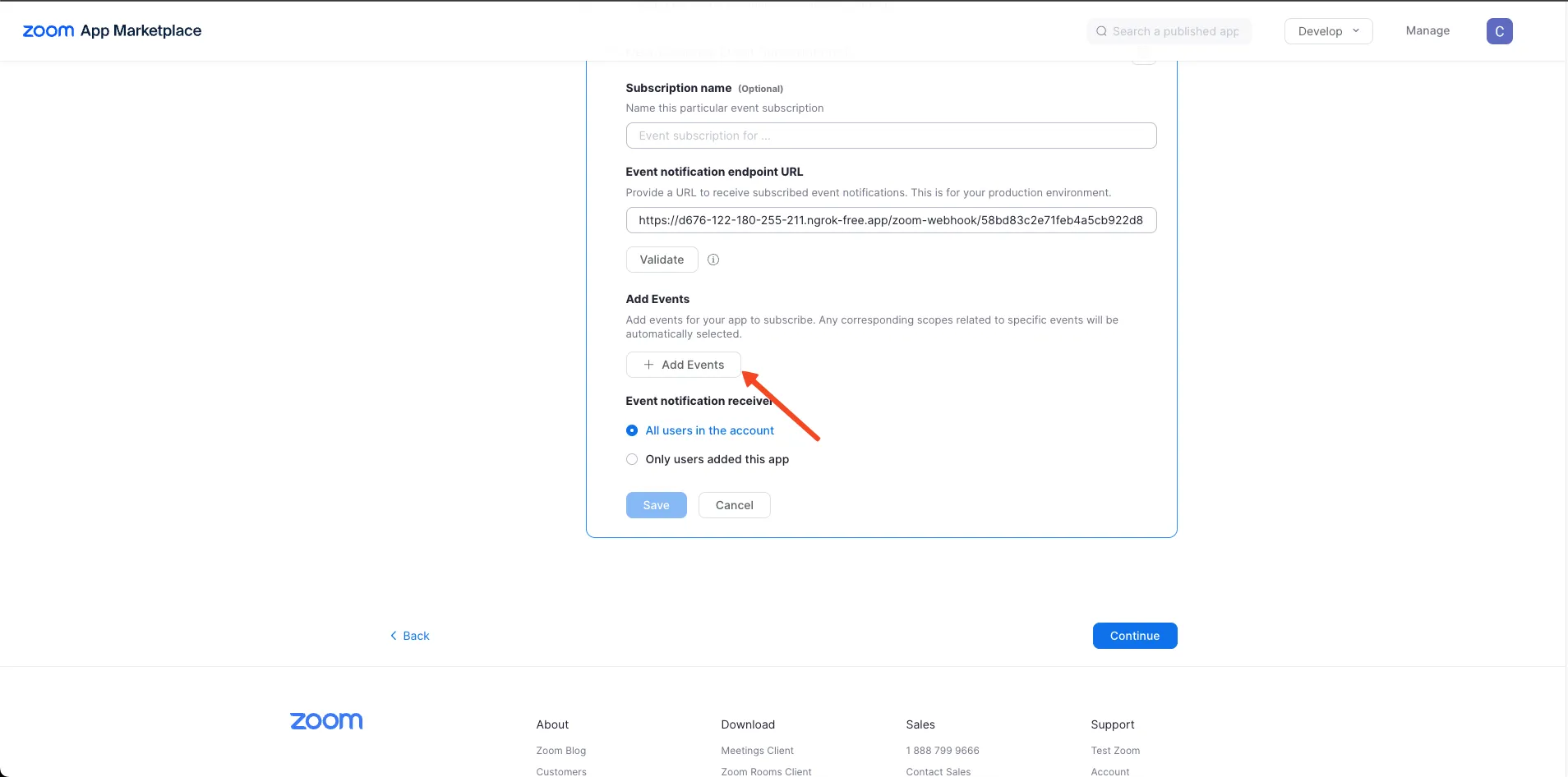
Click on Add Events
-
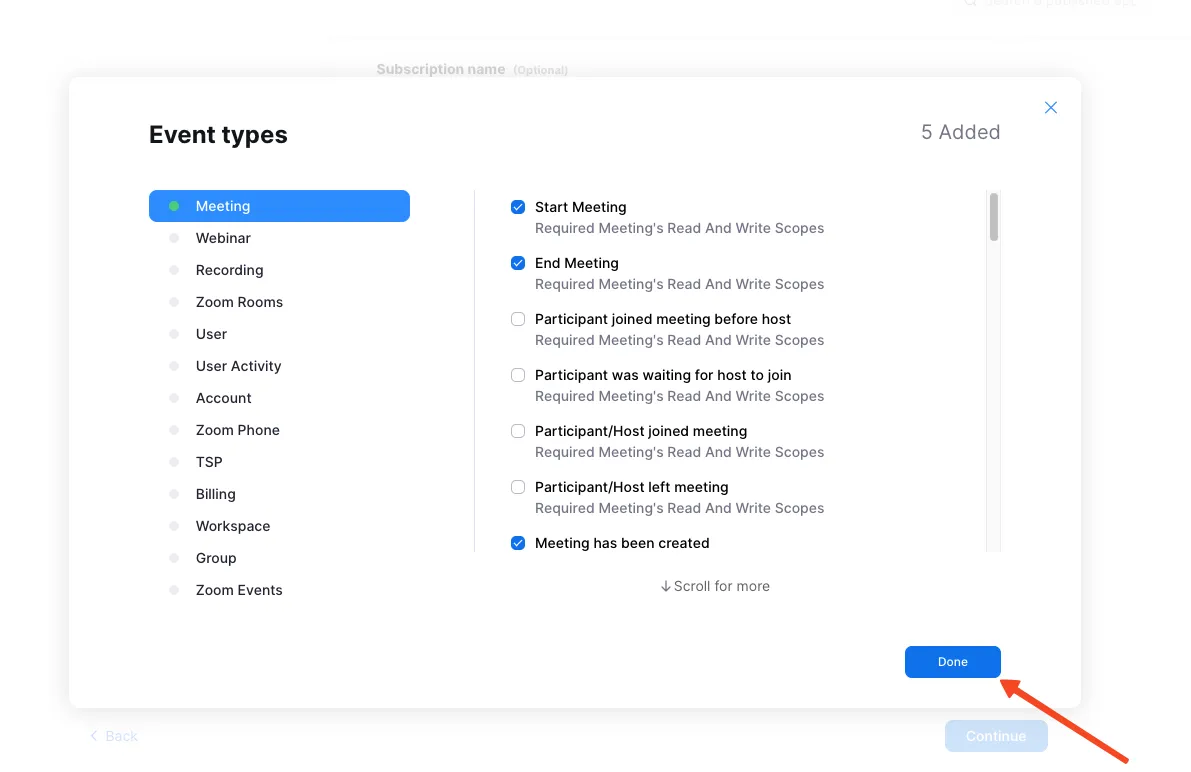
Add Meeting events (Start Meeting, End Meeting, Meeting has been created, Meeting has been updated, Meeting has been deleted) and click on Done
-
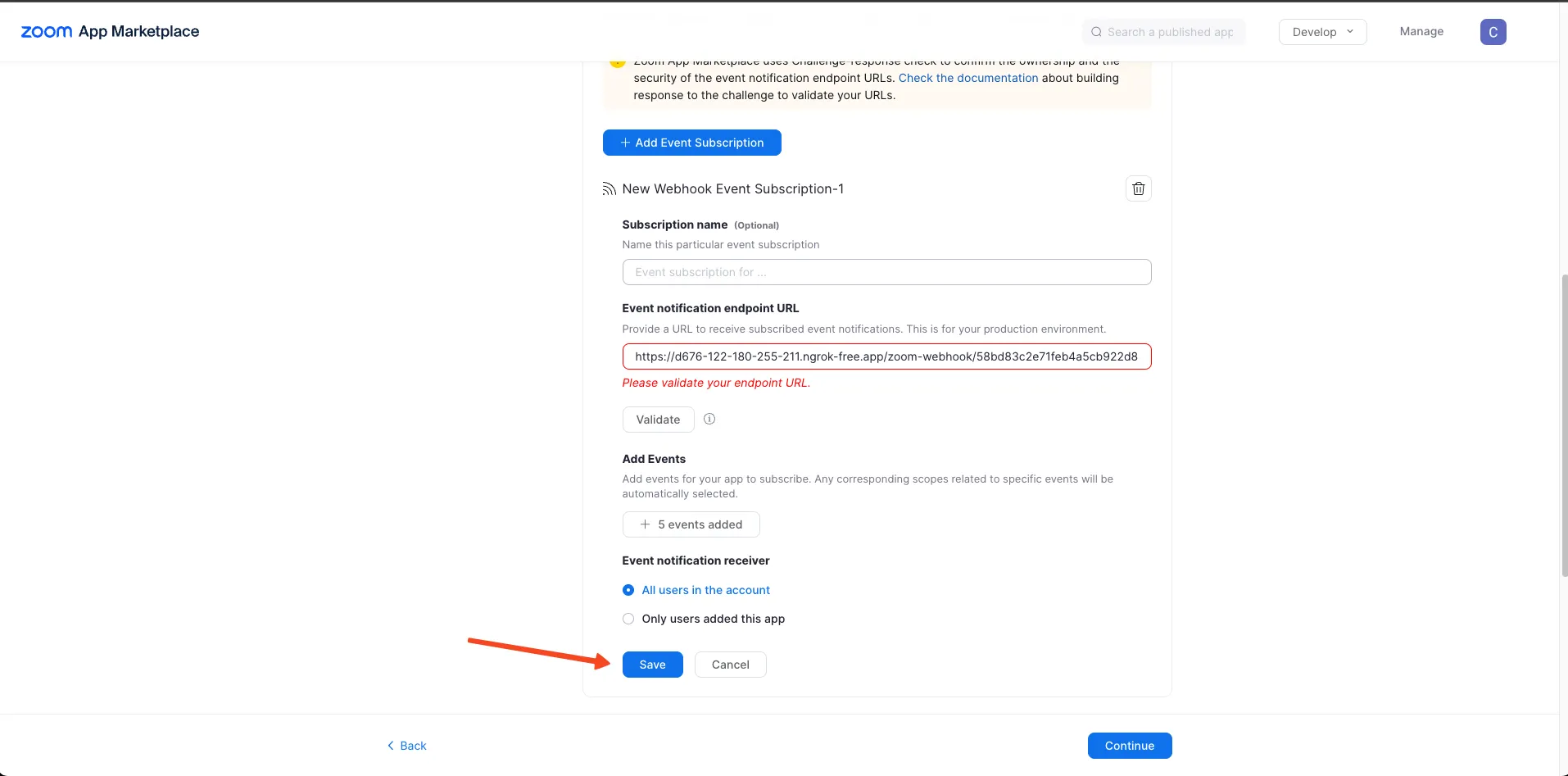
Click on Save
-
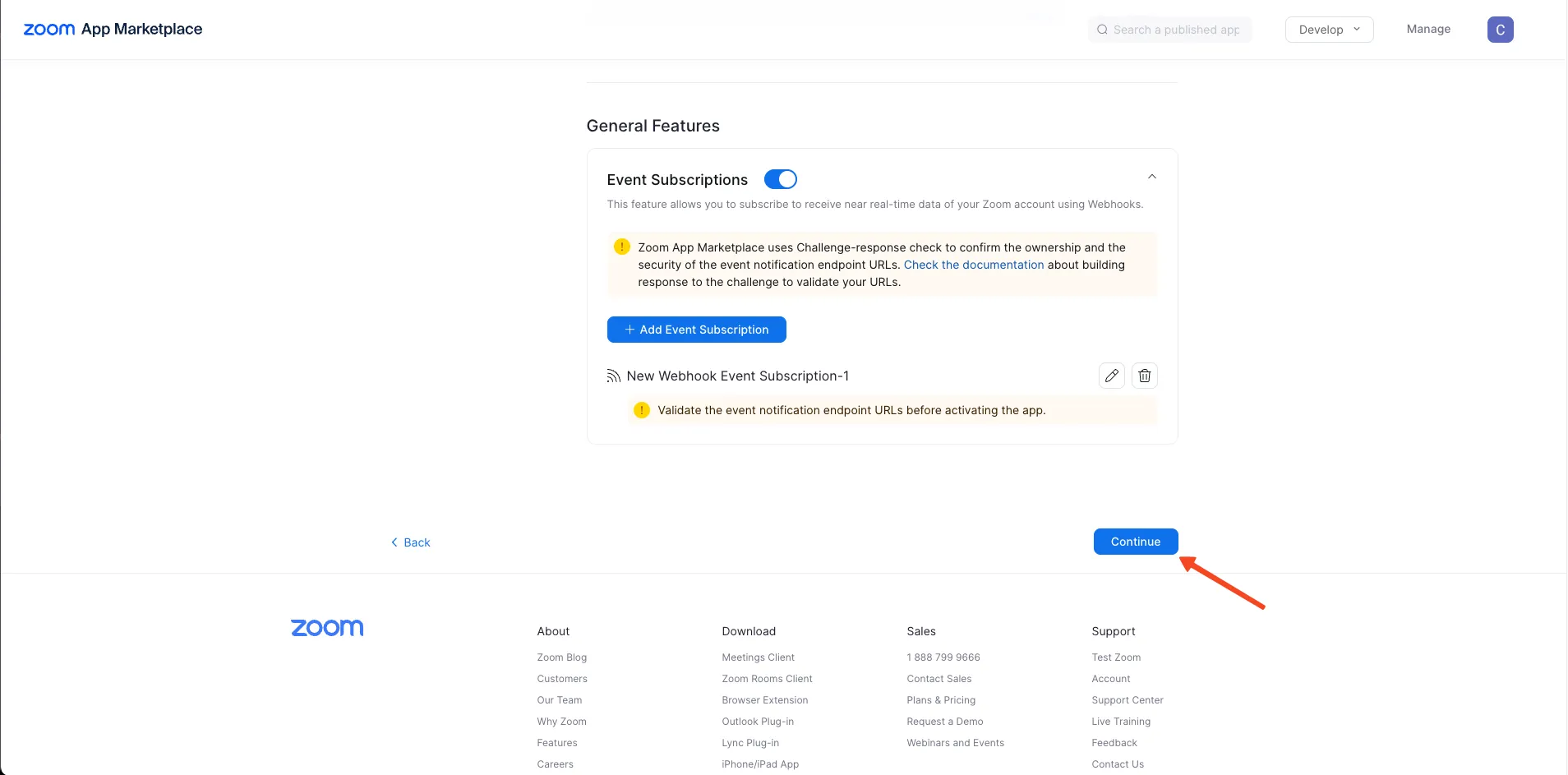
Click on Continue
-
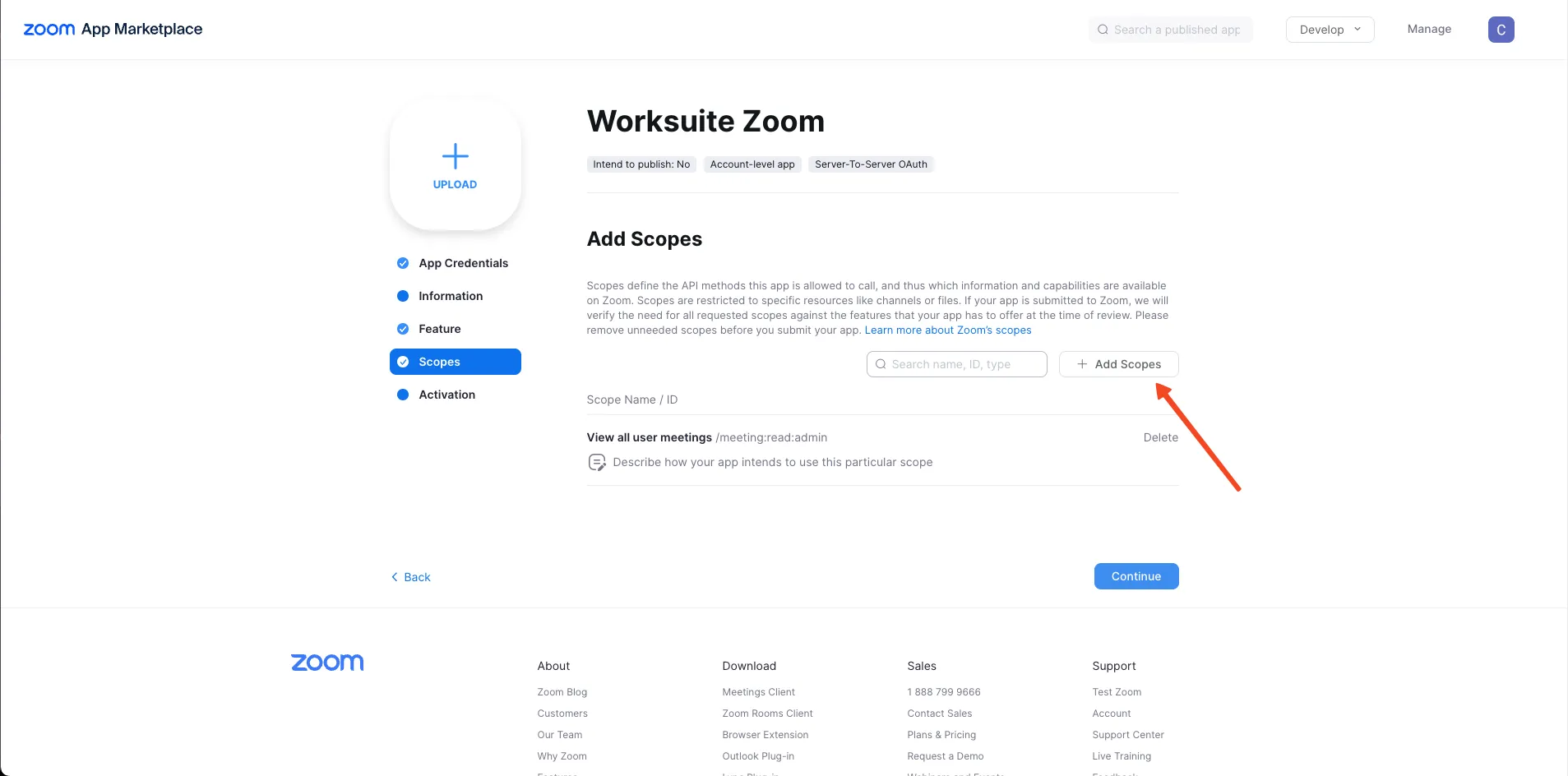
Click on Add Scopes
-
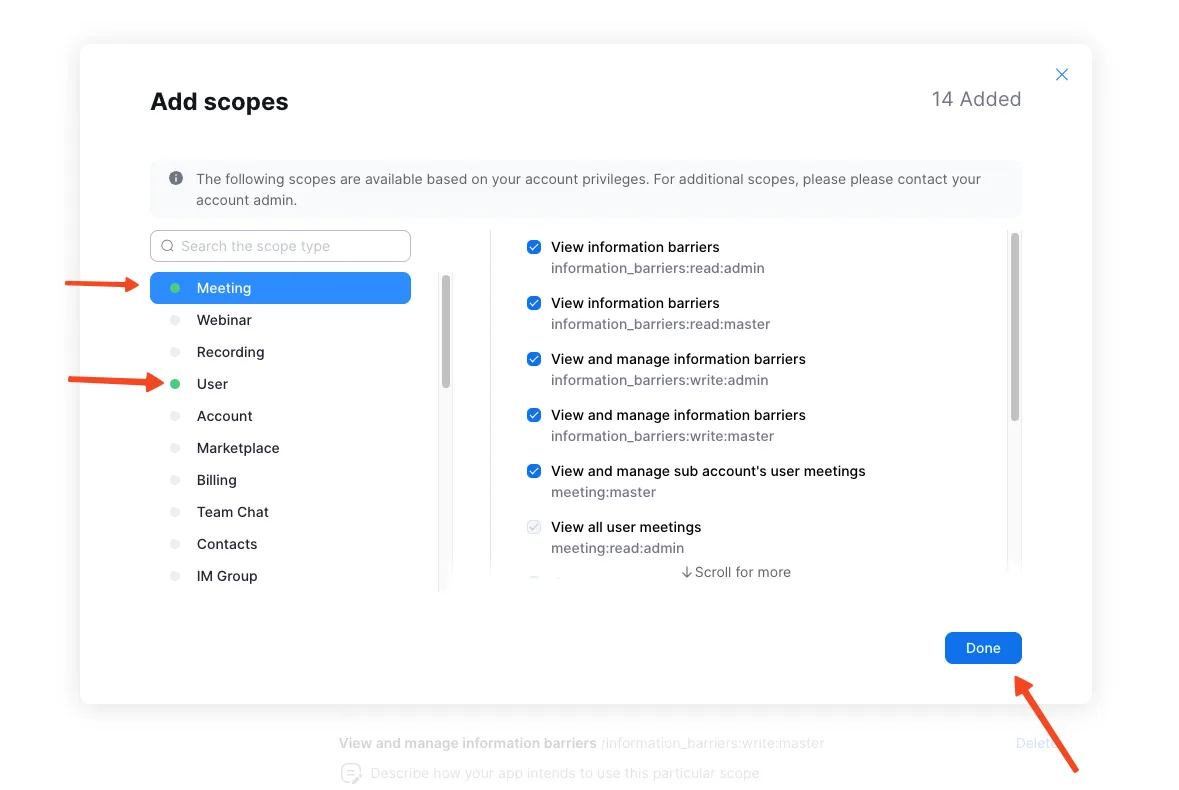
Add all Meeting and User scopes and click on done
-
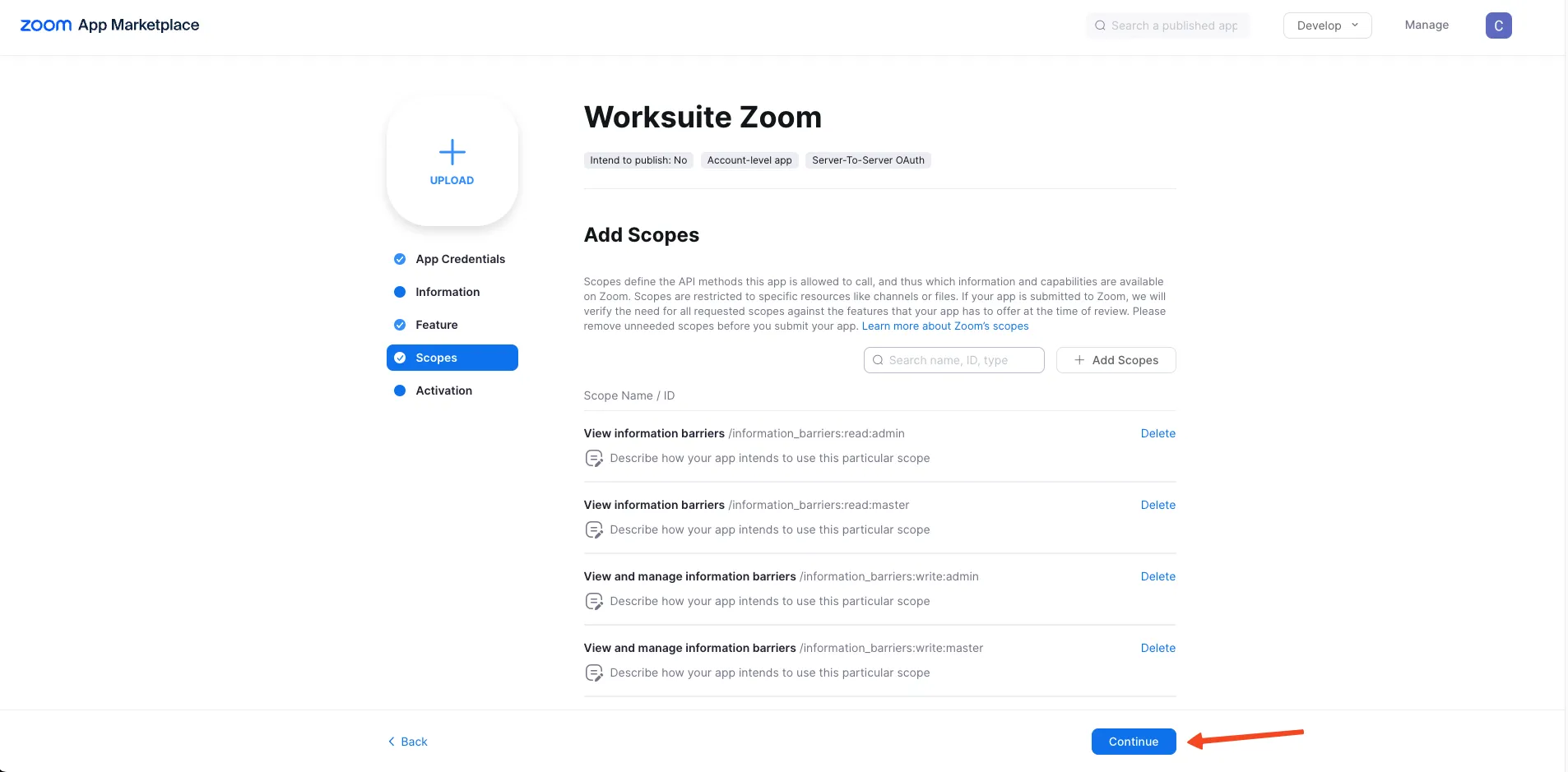
Click on Continue
-
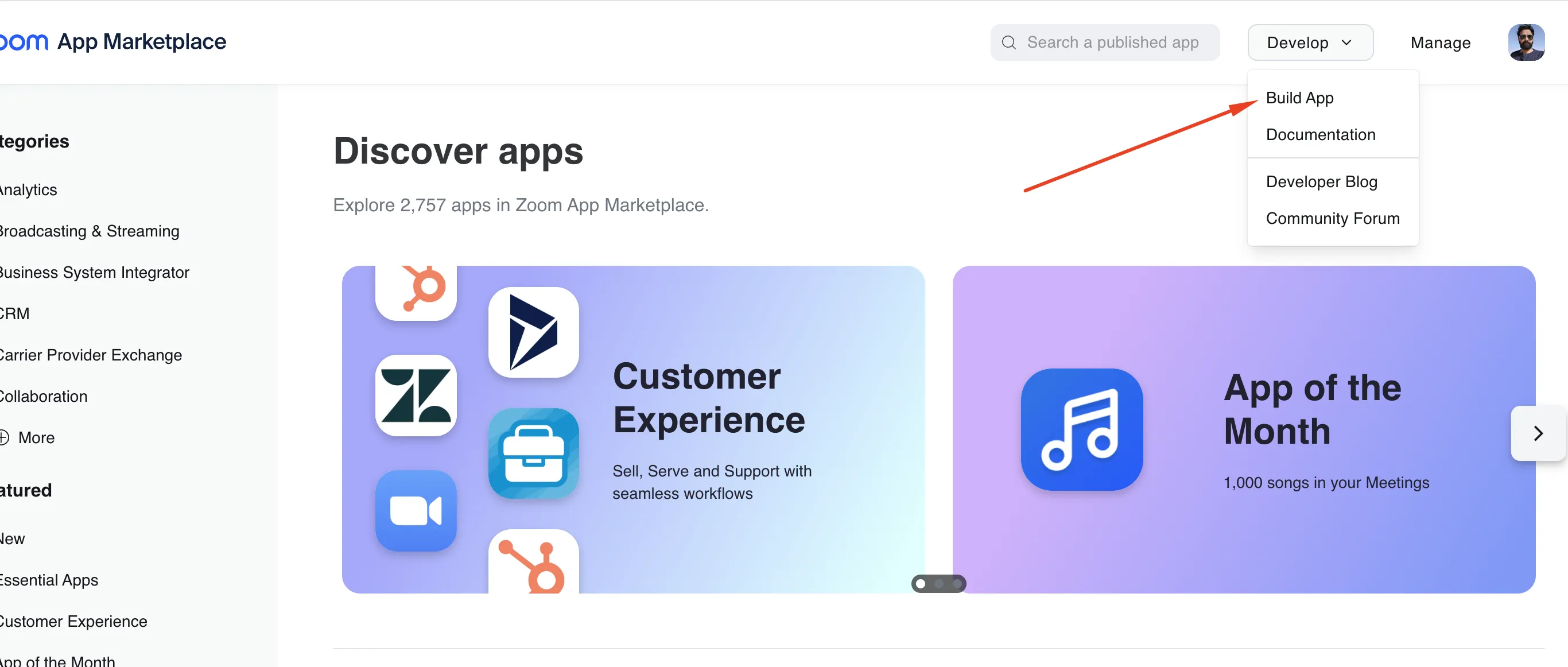
Select Build App
-
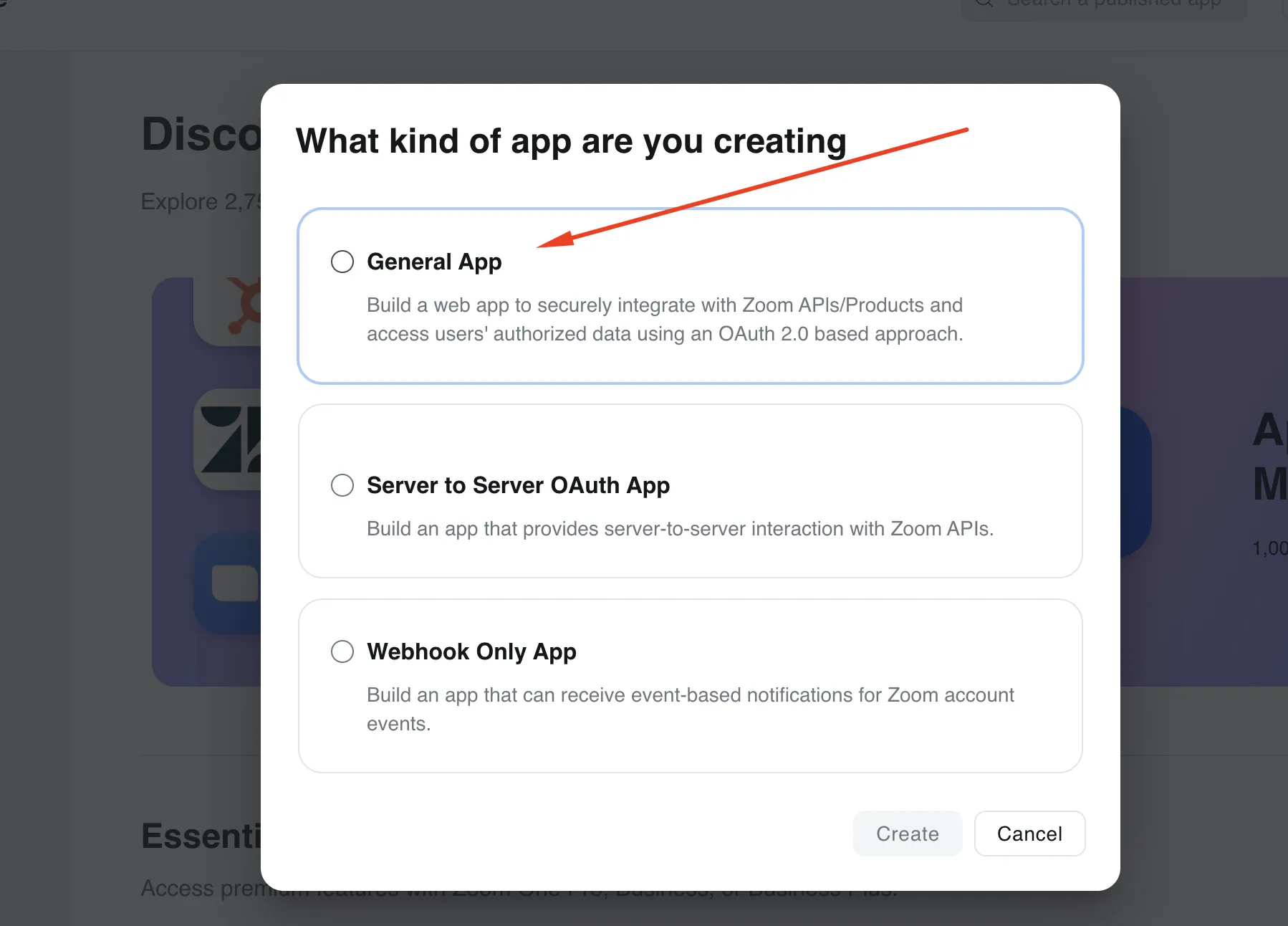
Click on General Meeting
-
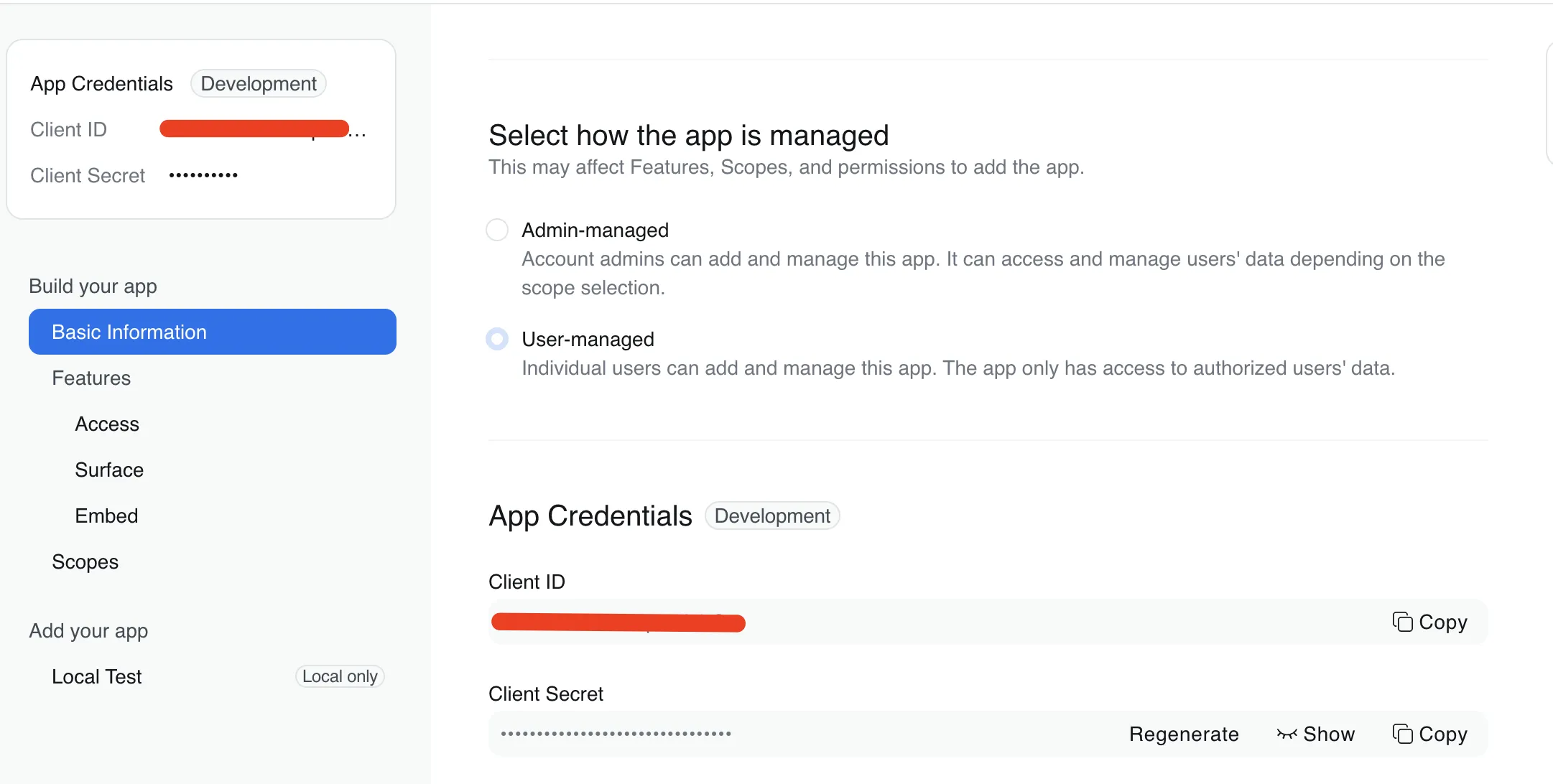
Check User-managed
-
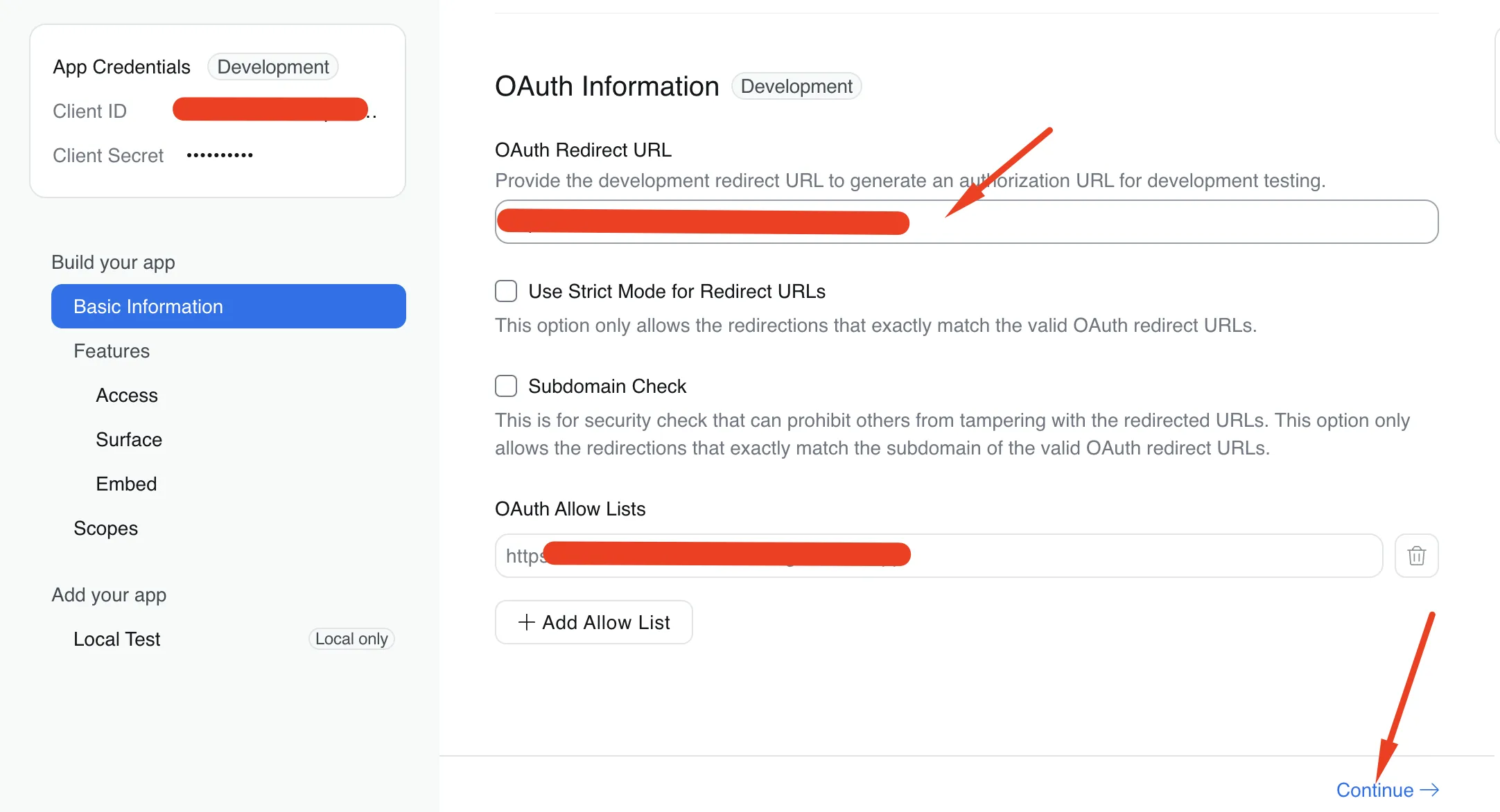
Add information for the app and click Continue
-
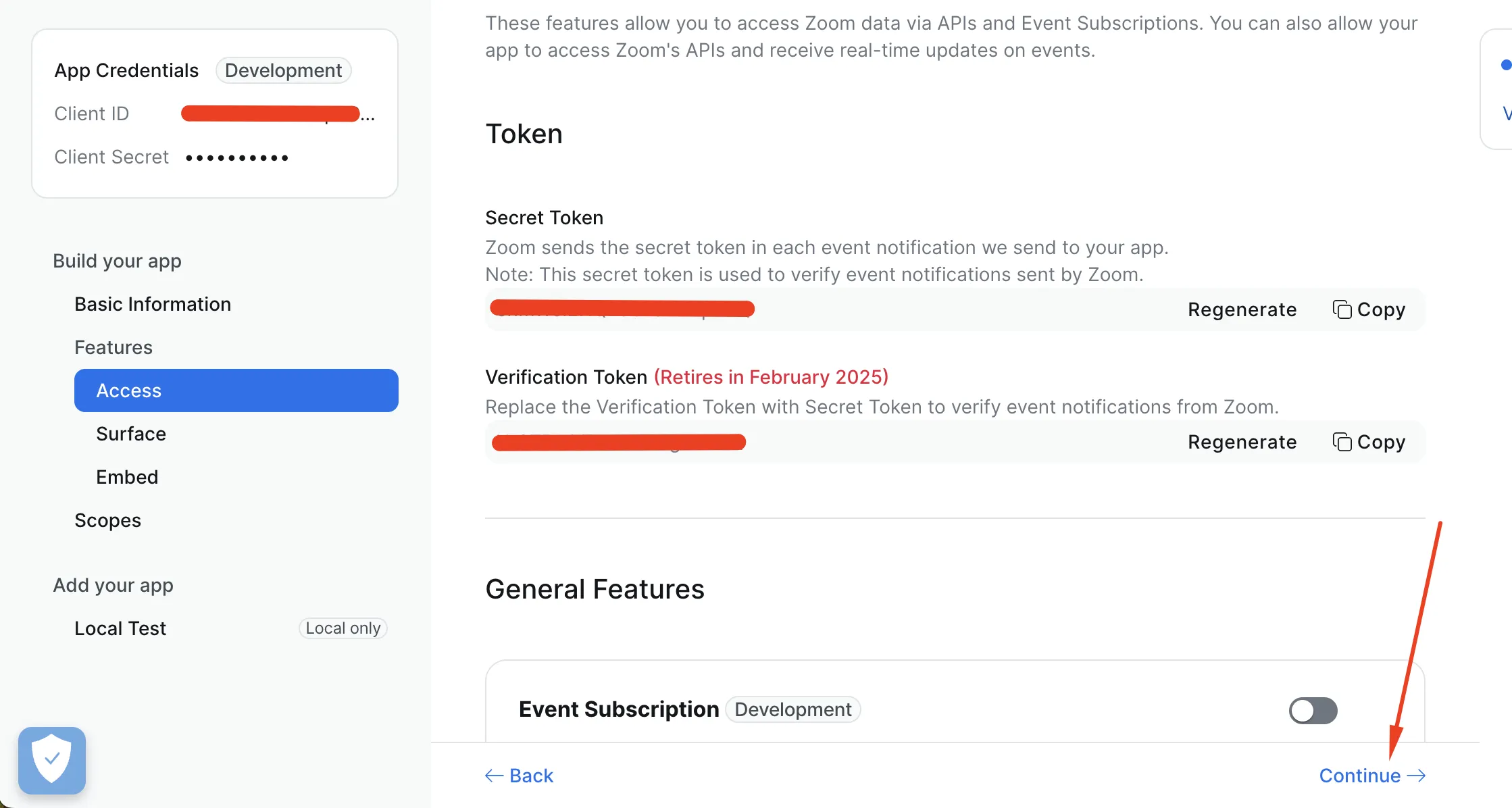
In Access no need to do anything just click on Continue
-
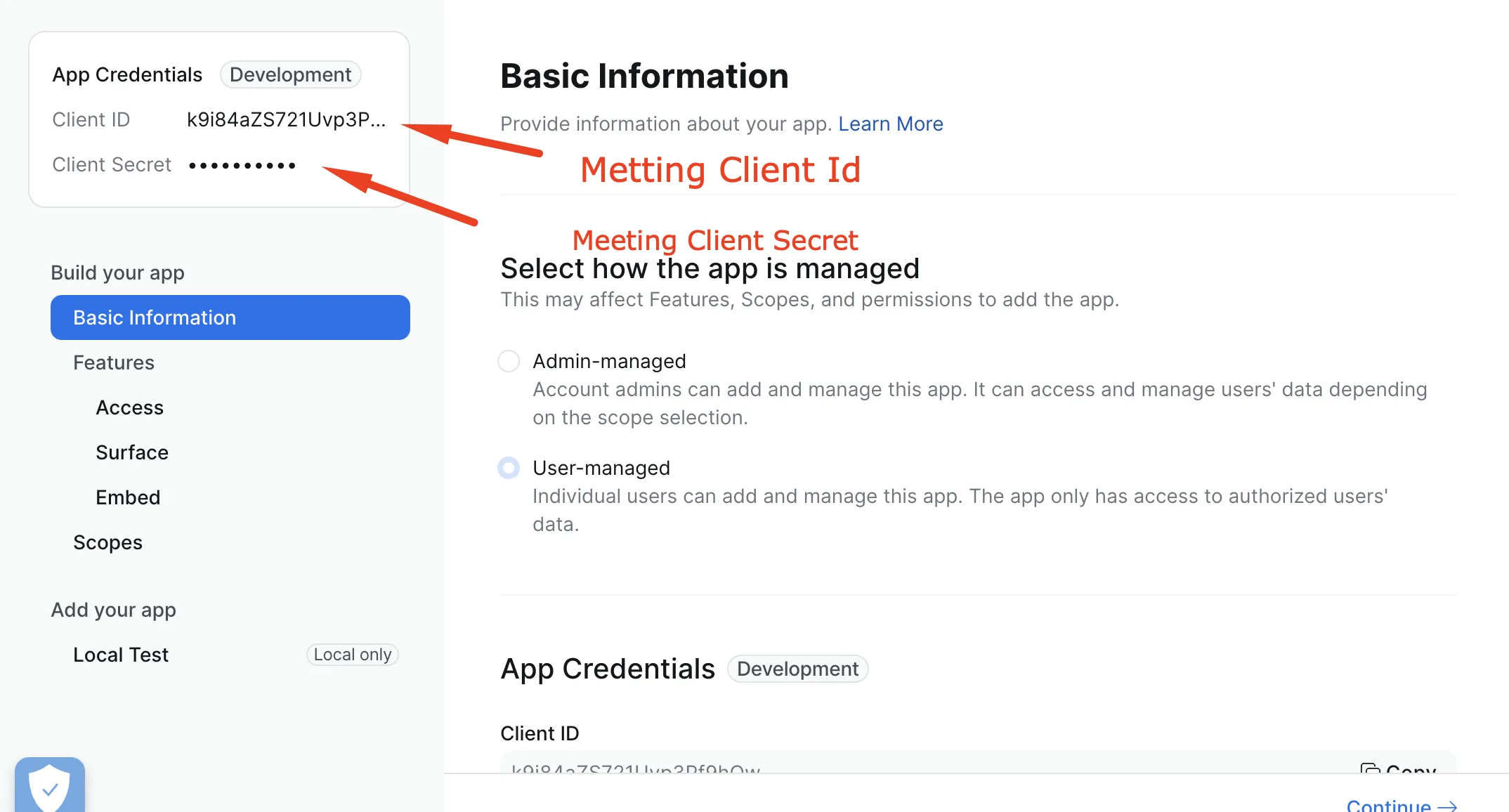
Set Meeting App credentials
-
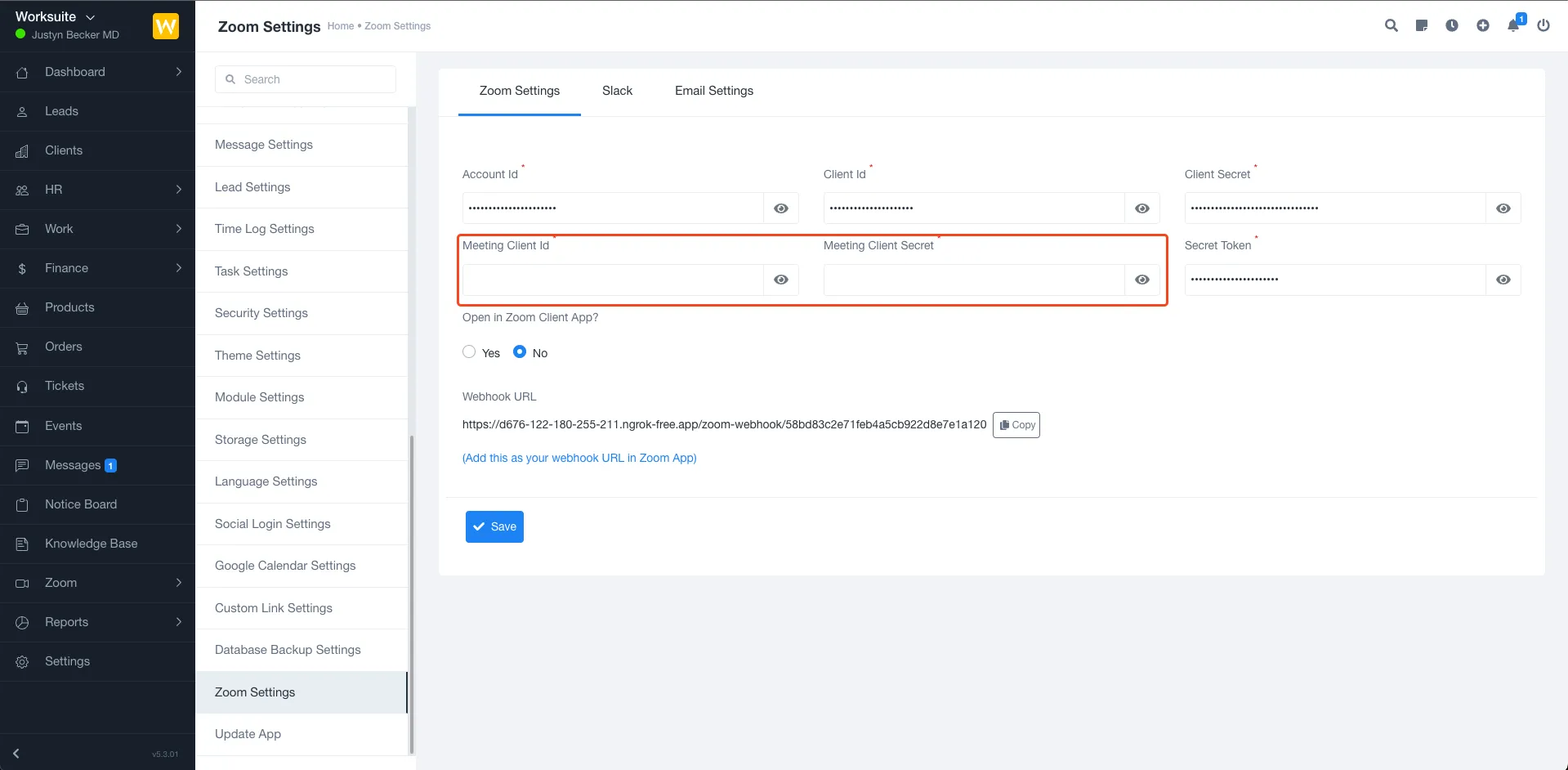
Add these credentials on Application and Click on Save
-
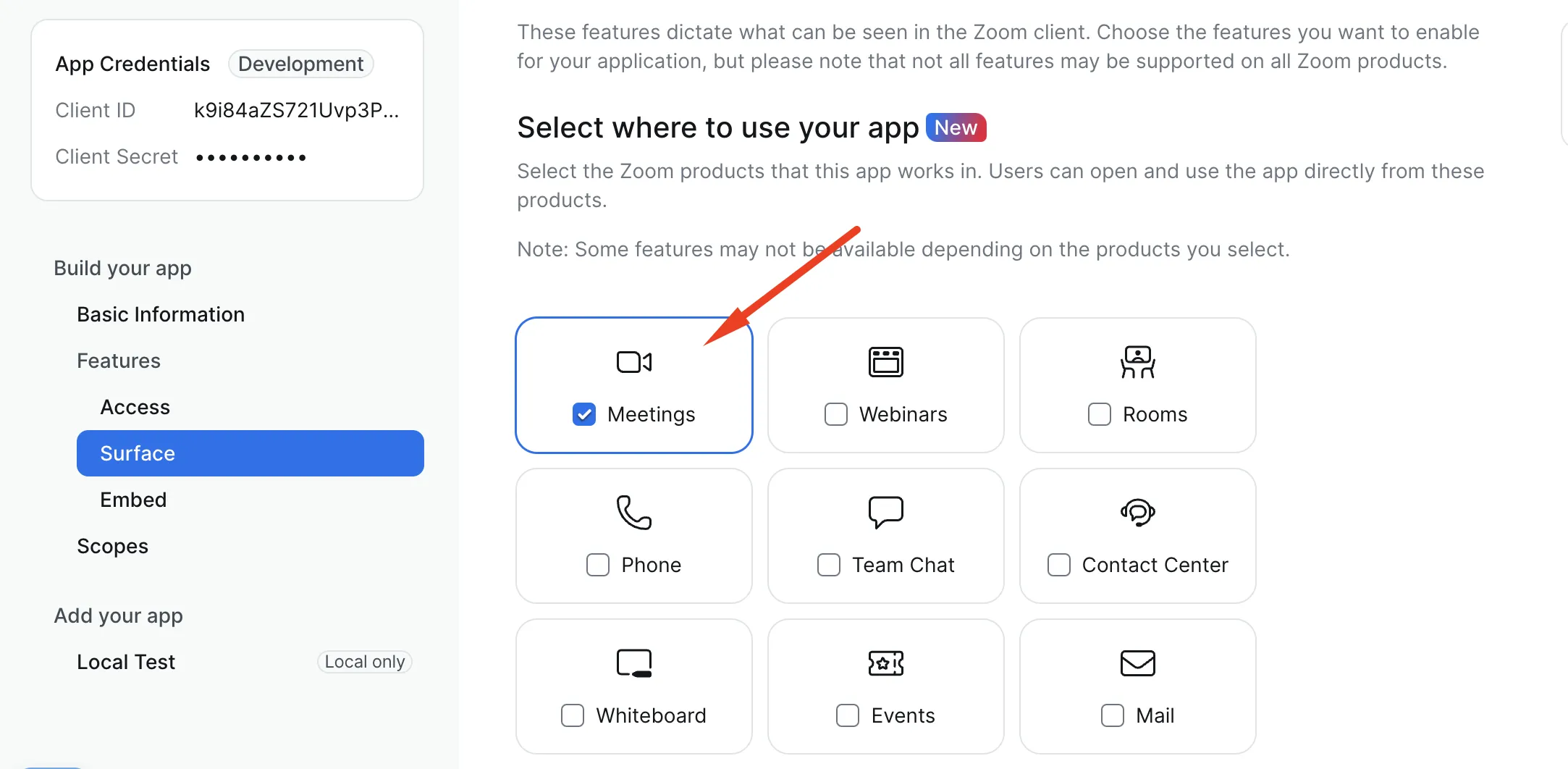
In Surface check on Meetings and insert Domain
-
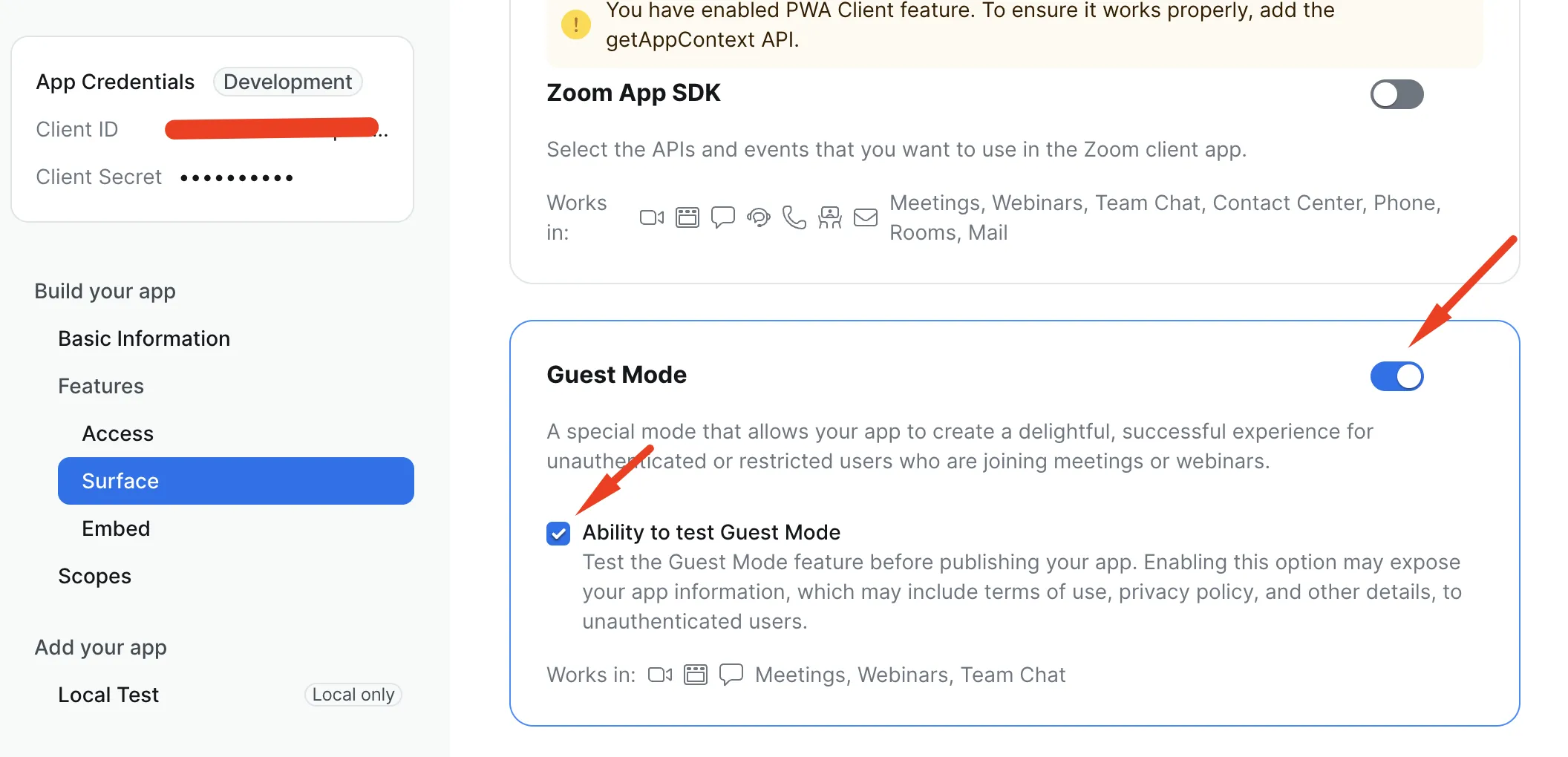
In Surface check Guest and check on Ability to test Guest Mode
-
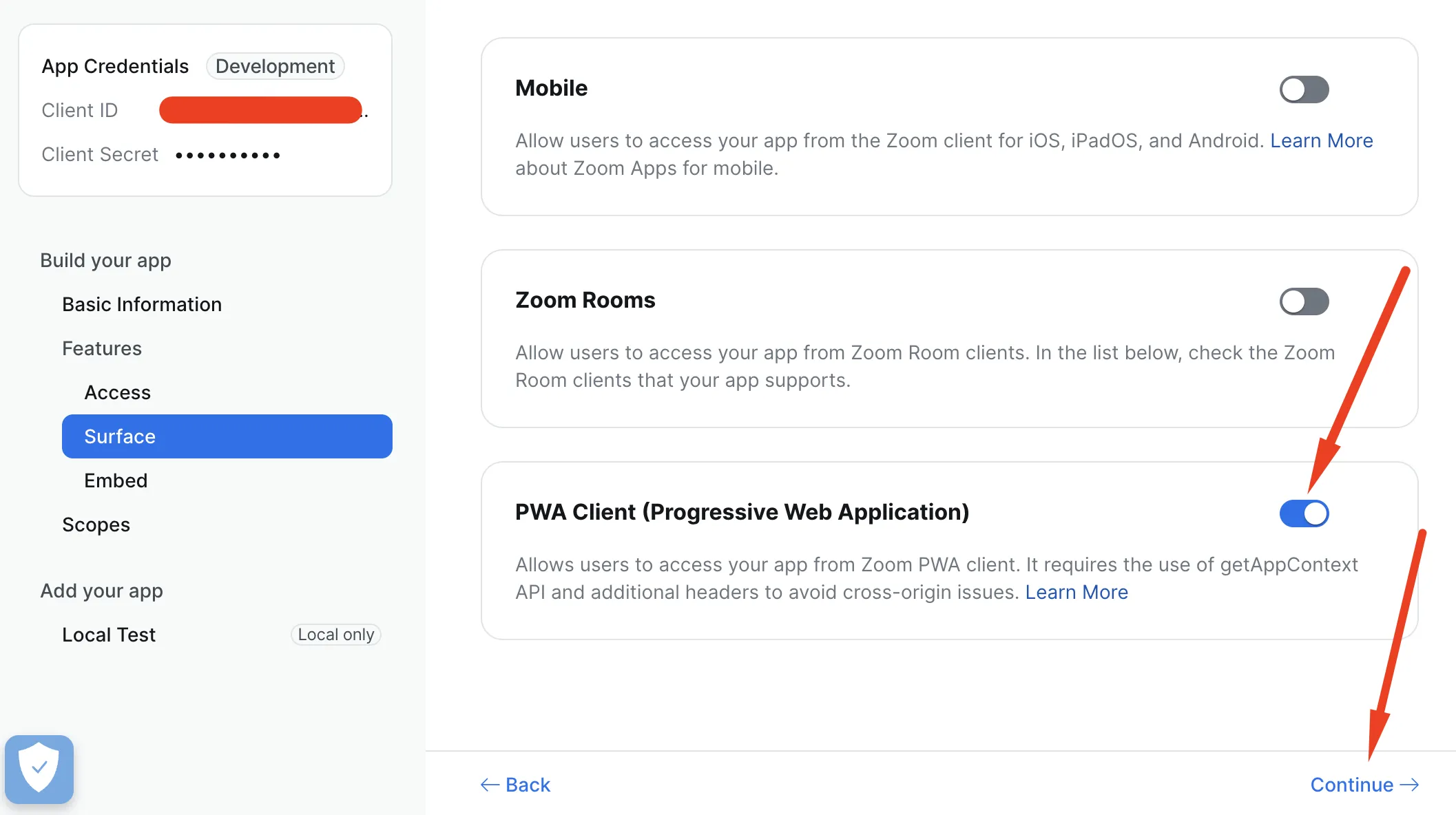
In surface check **PWA Client (Progressive Web Application)**and continue
-
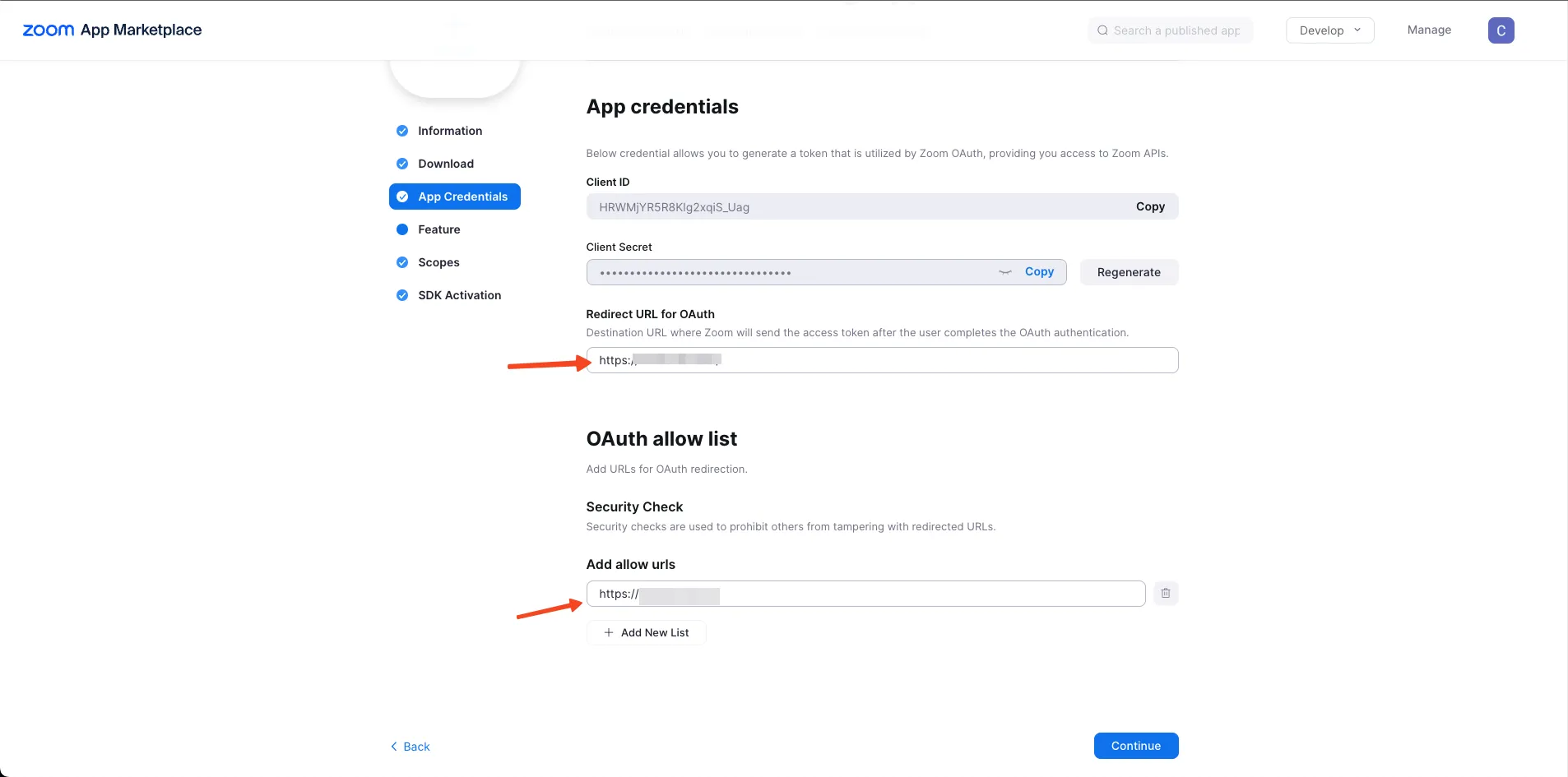
Add application url in Redirect URL for OAuth and Add allow urls and click Continue
-
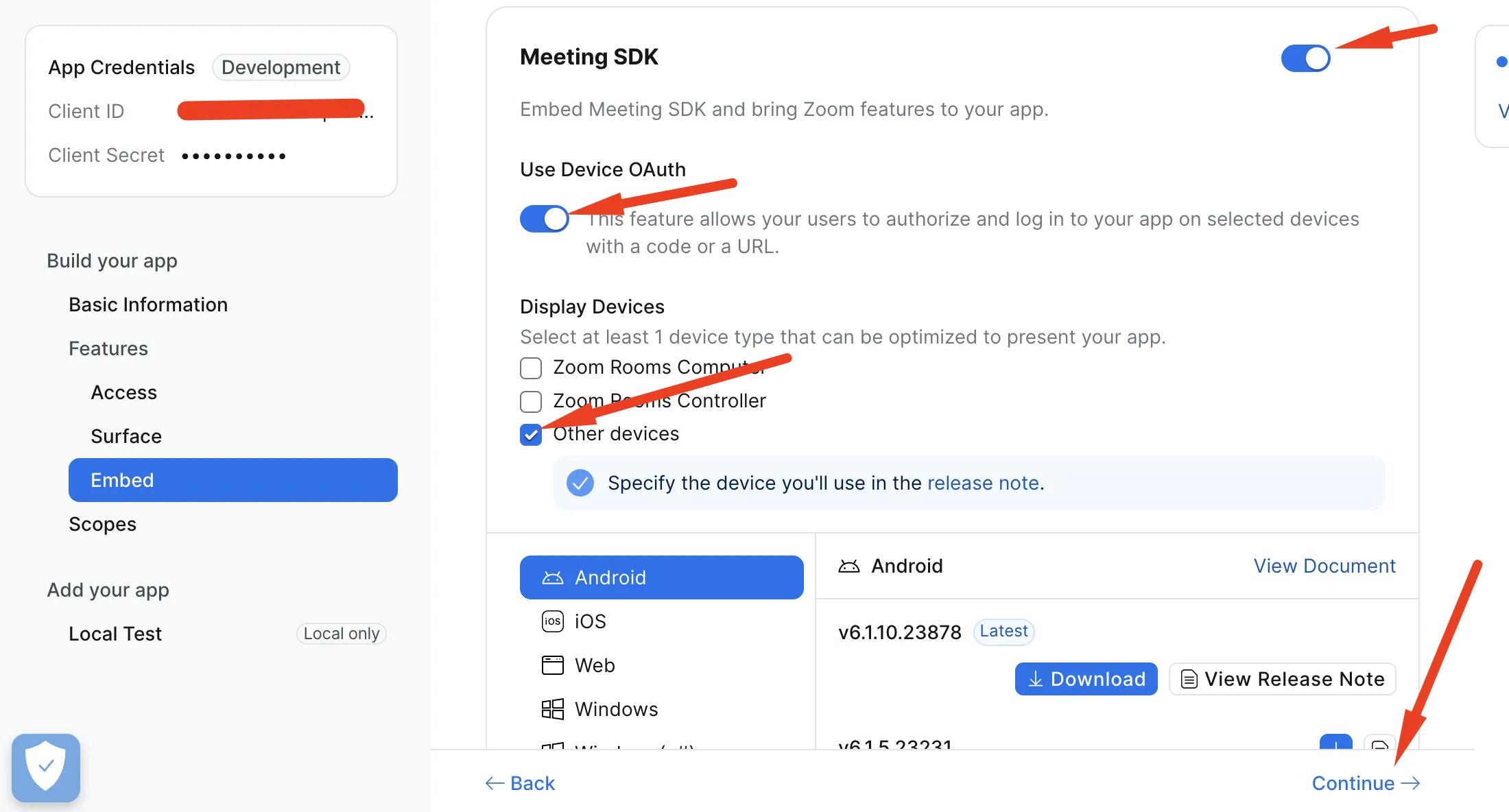
In embed check Meeting SDK and check Use Device OAuth and choose other devicesand continue
-
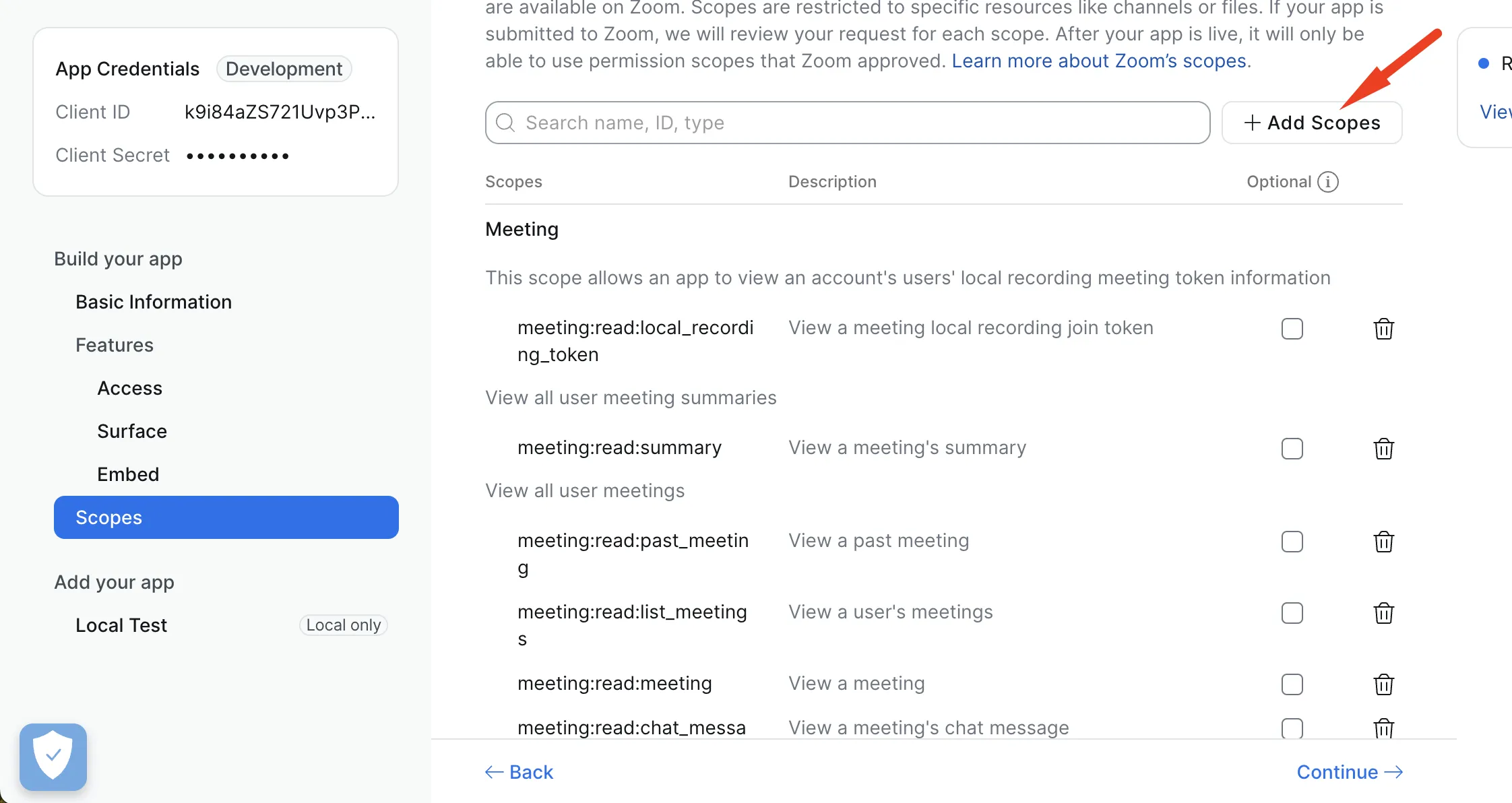
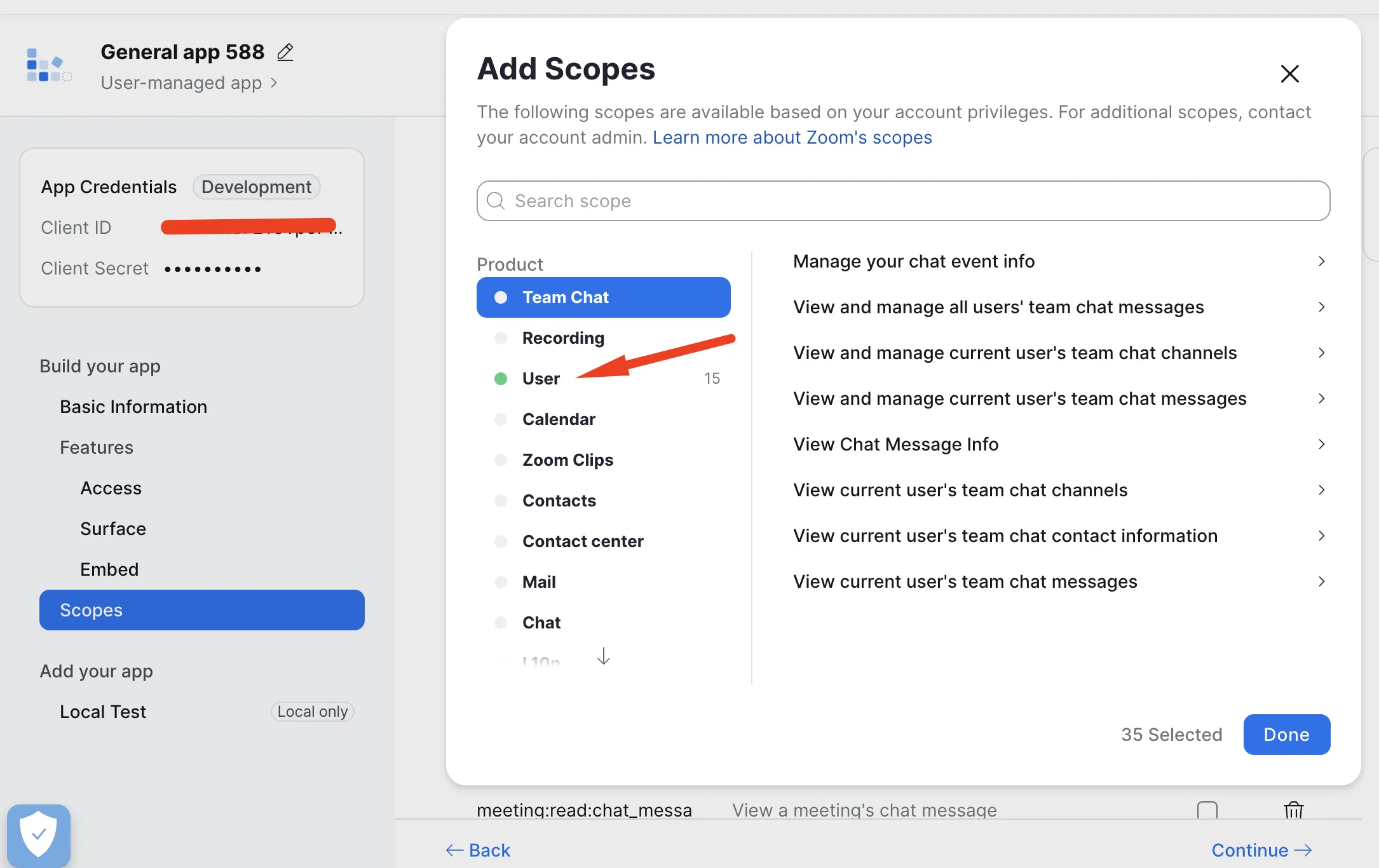
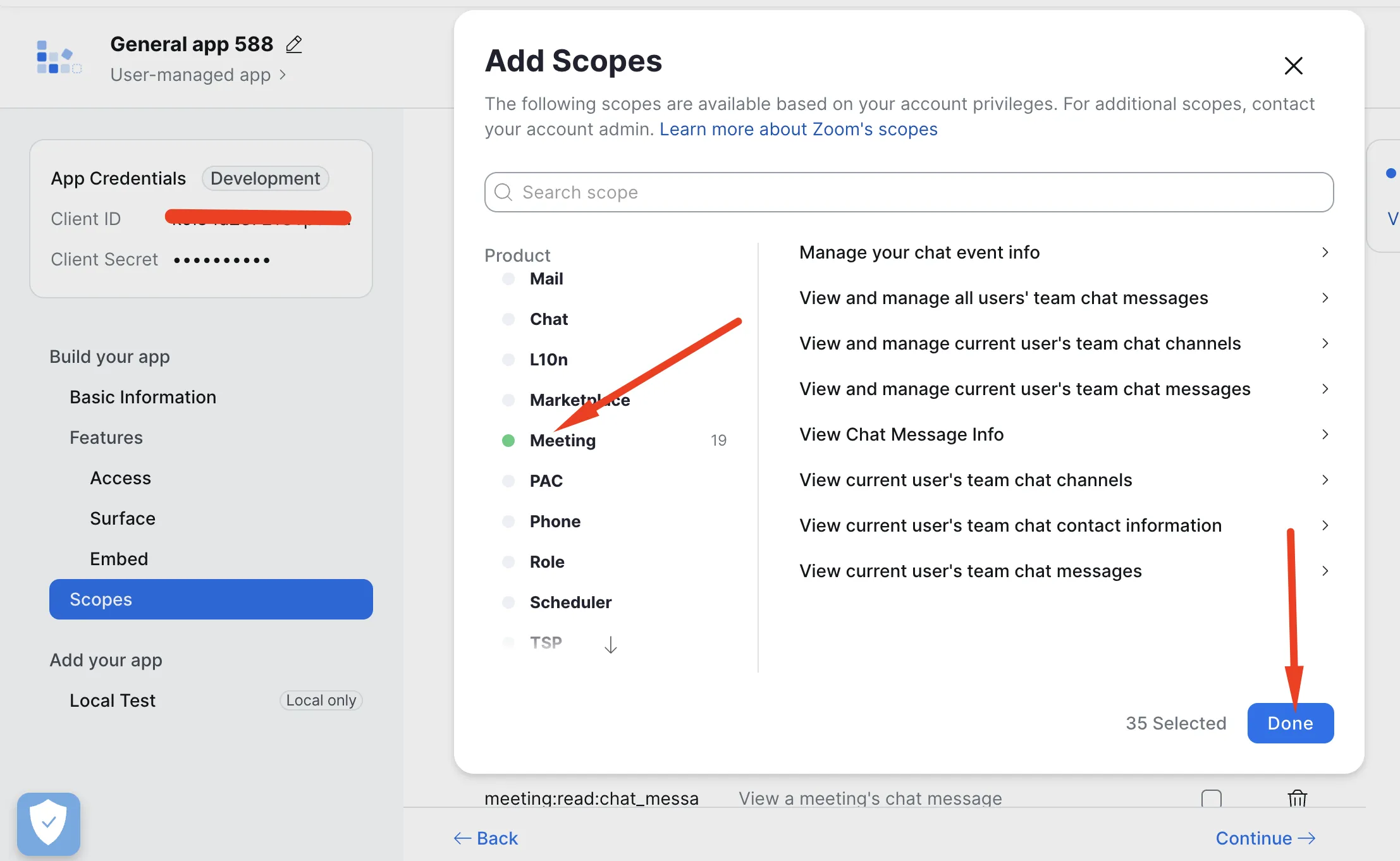
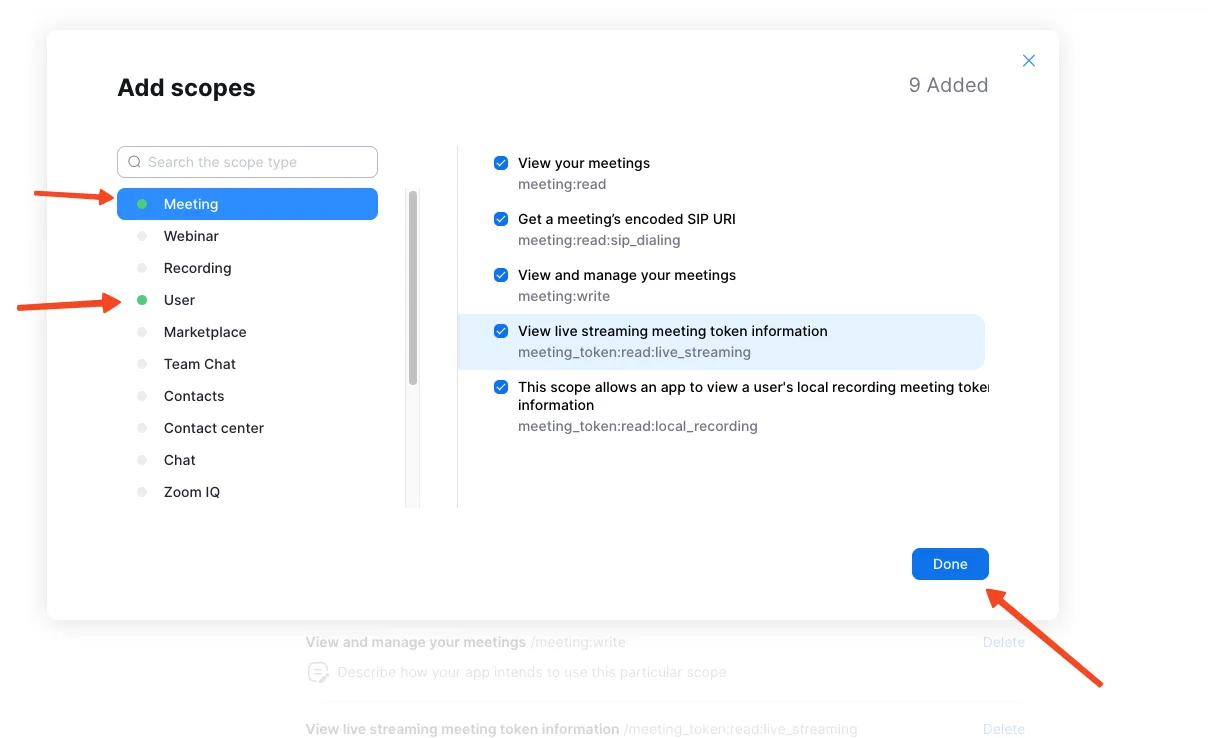
In Scope click on add Scope button and Add scope of User(No required poll, survey scopes ) and Meeting (No required poll, survey scopes )
-
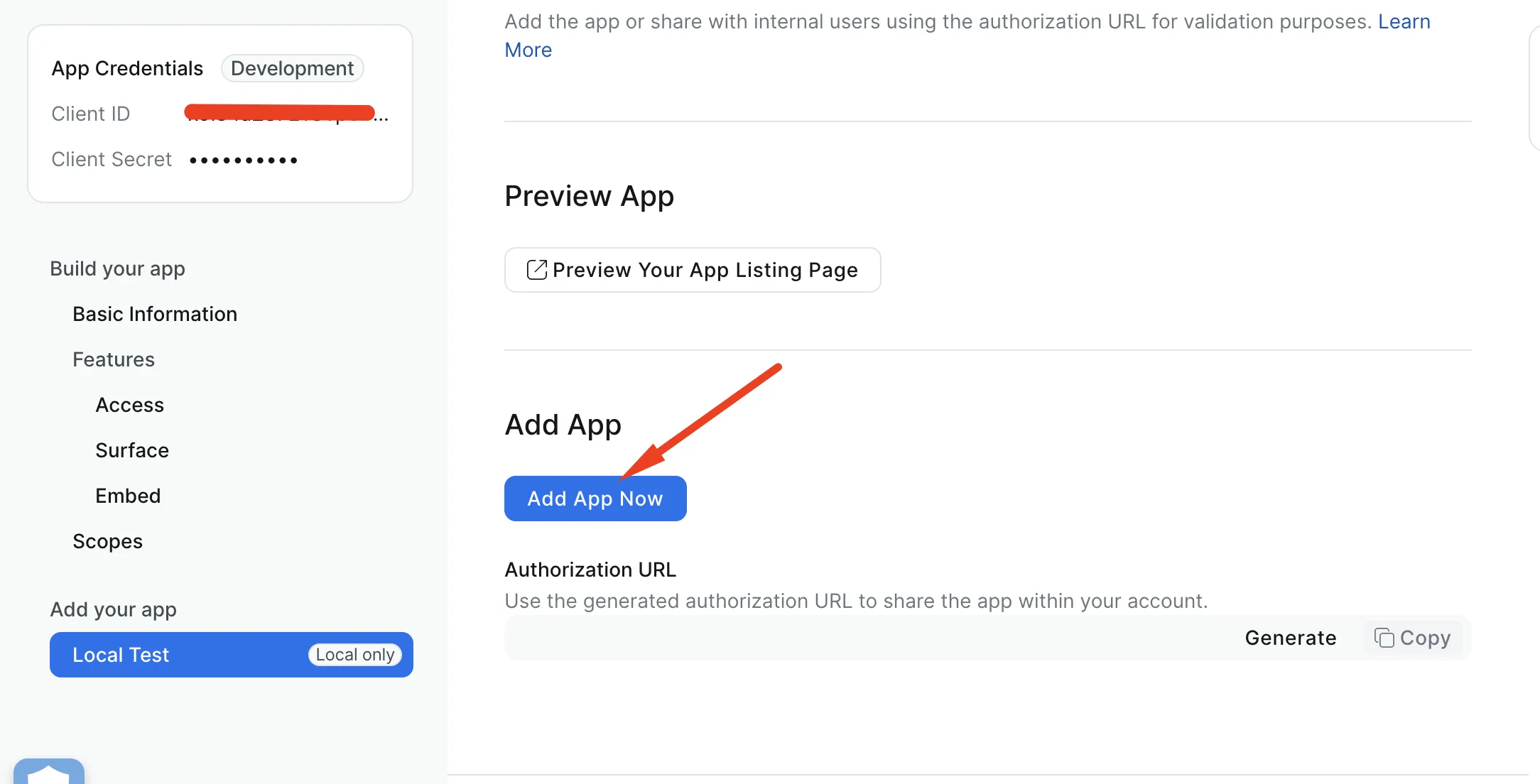
In Add Your App click on Add App Now button
-
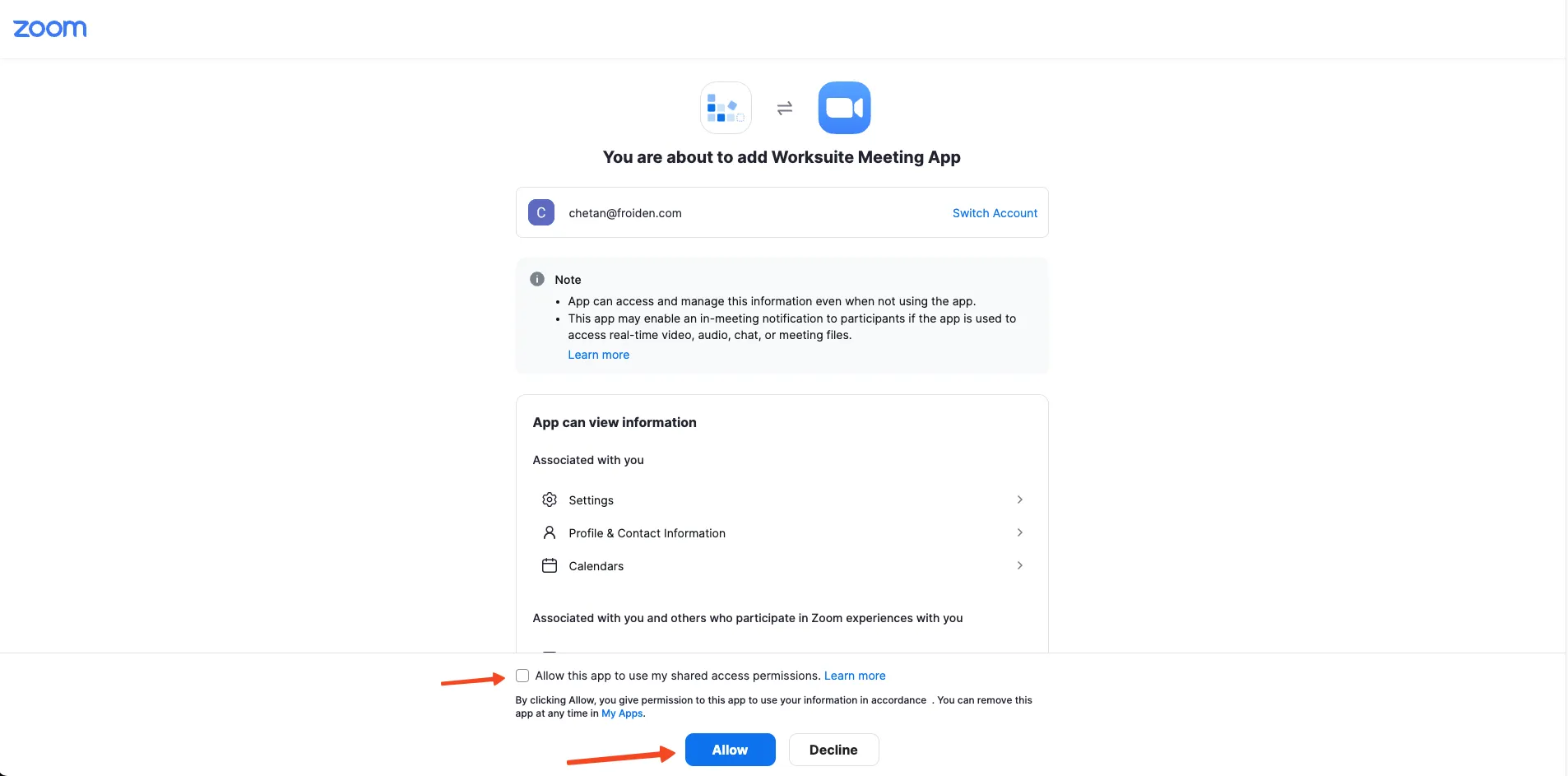
Allow the app
-
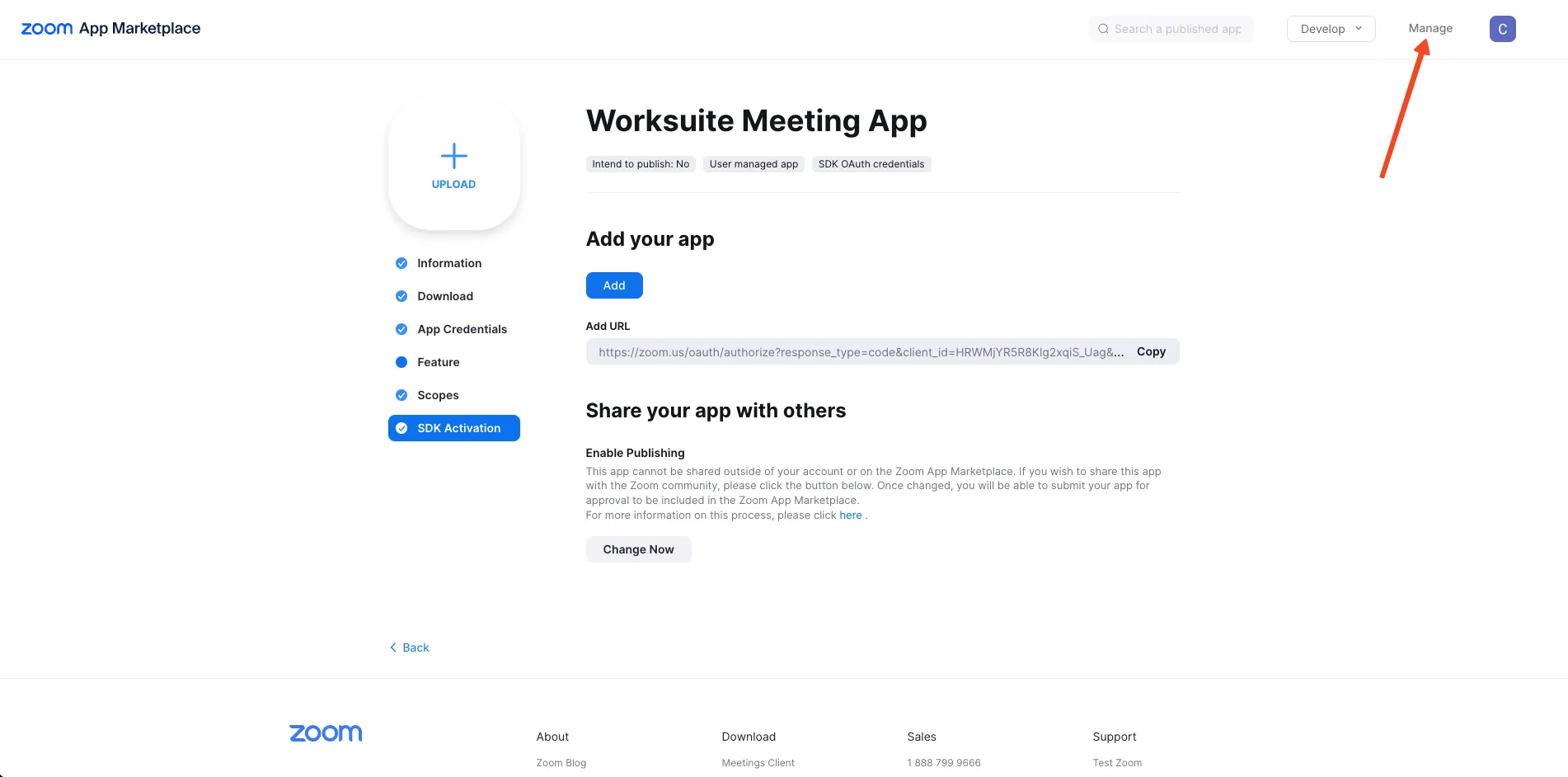
Click on Manage
-
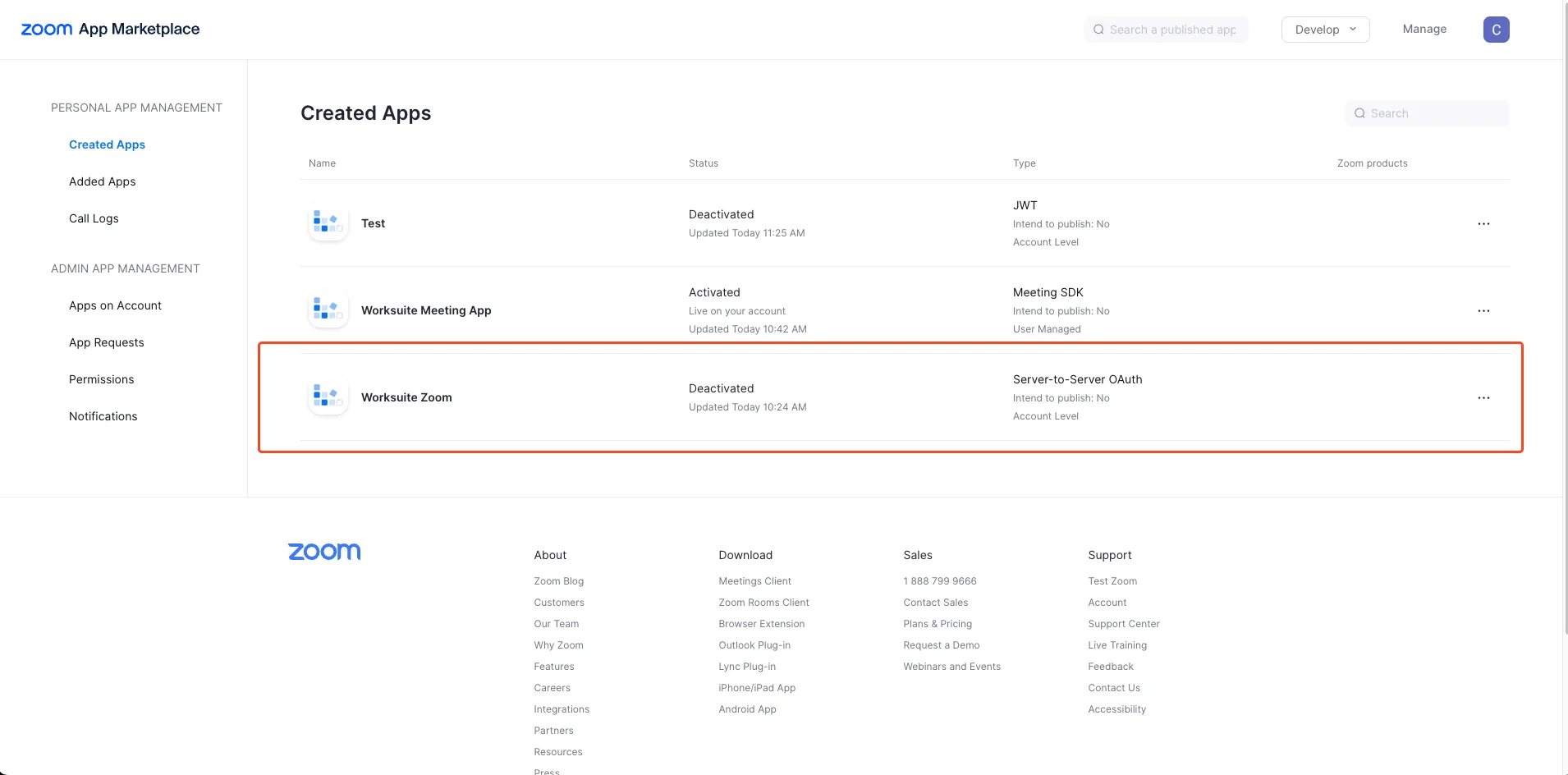
Open Server-to-Server OAuth App
-
Open feature
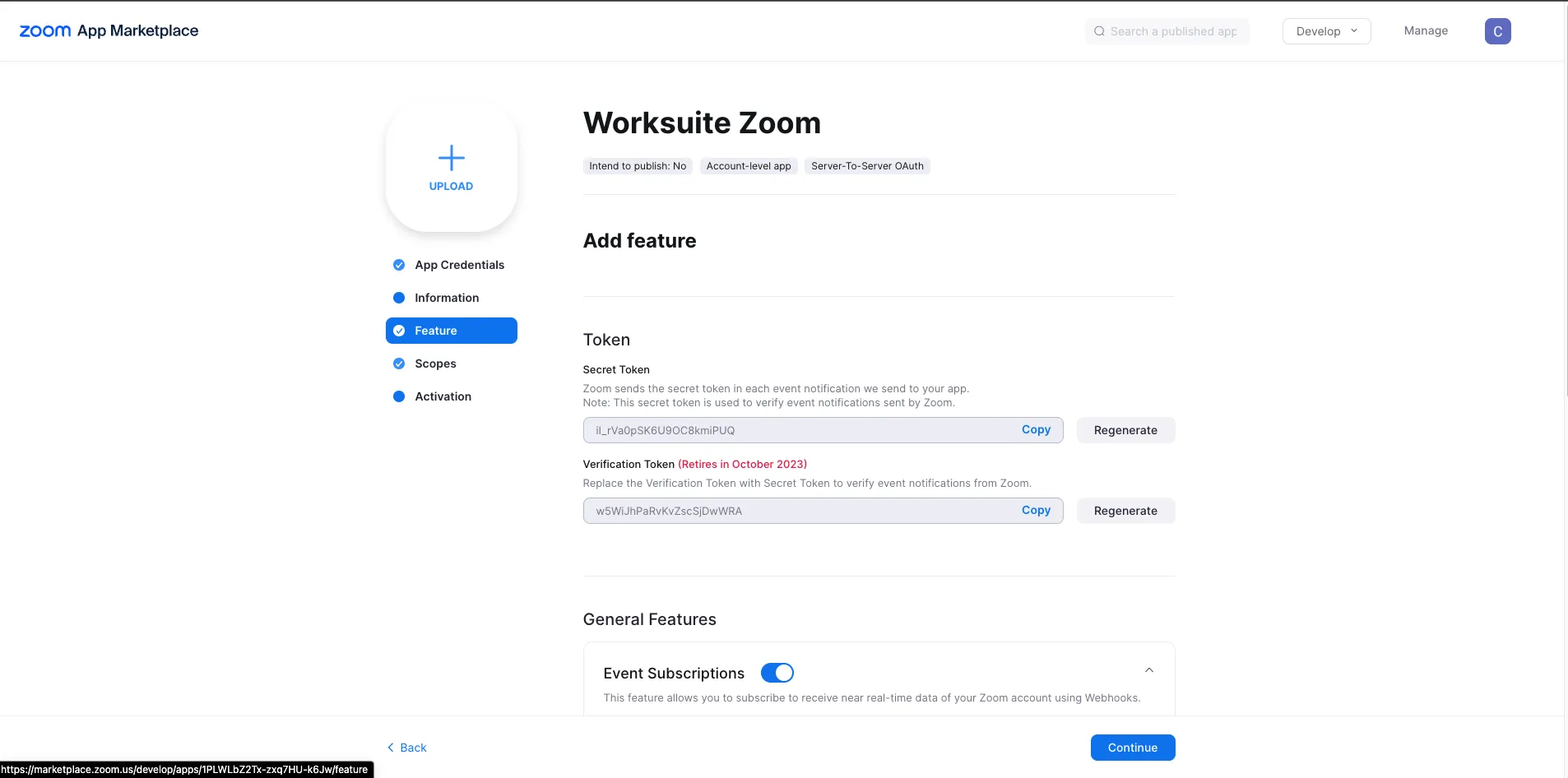
-
Click on Edit Event
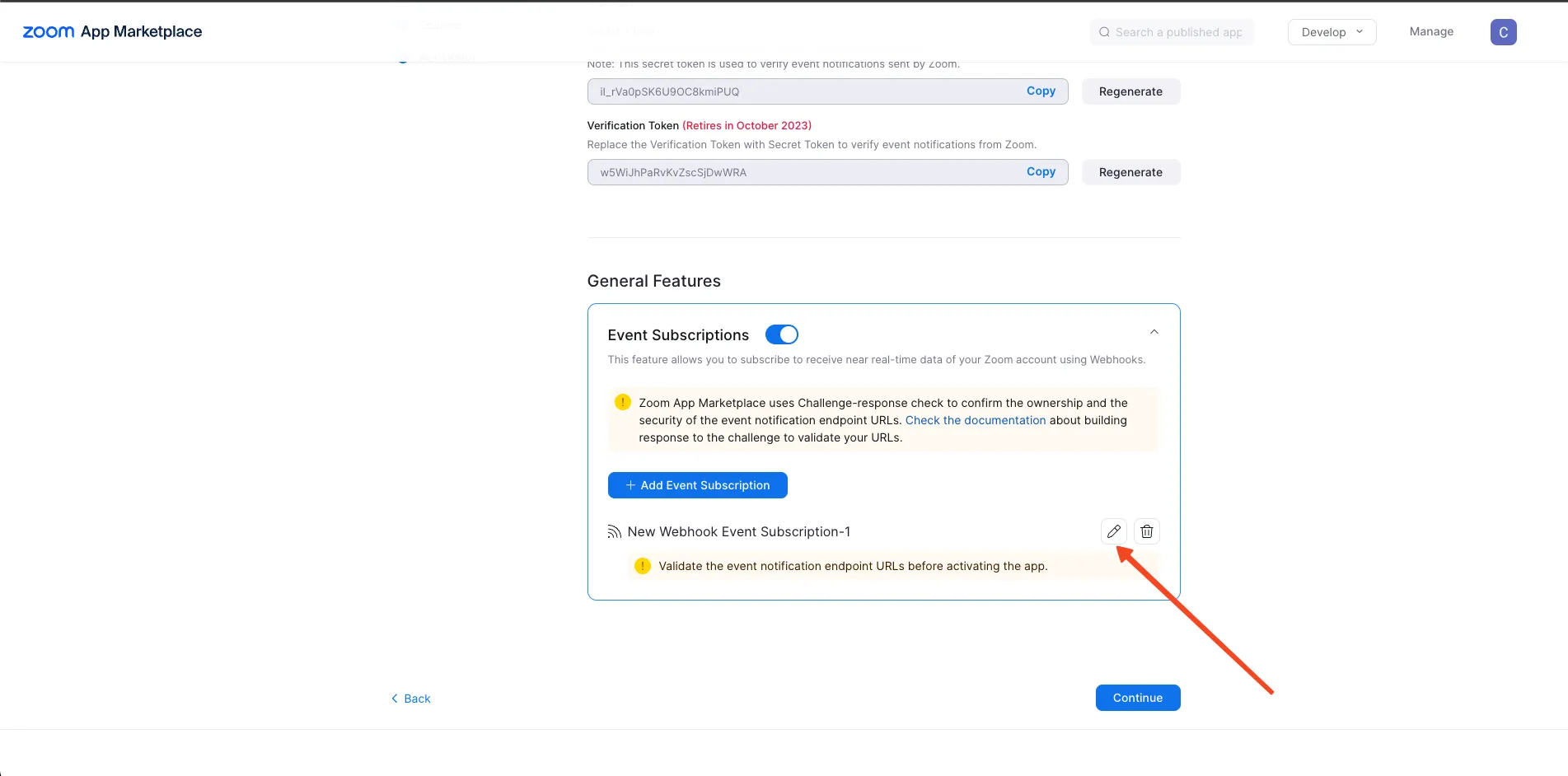
-
Click on Validate
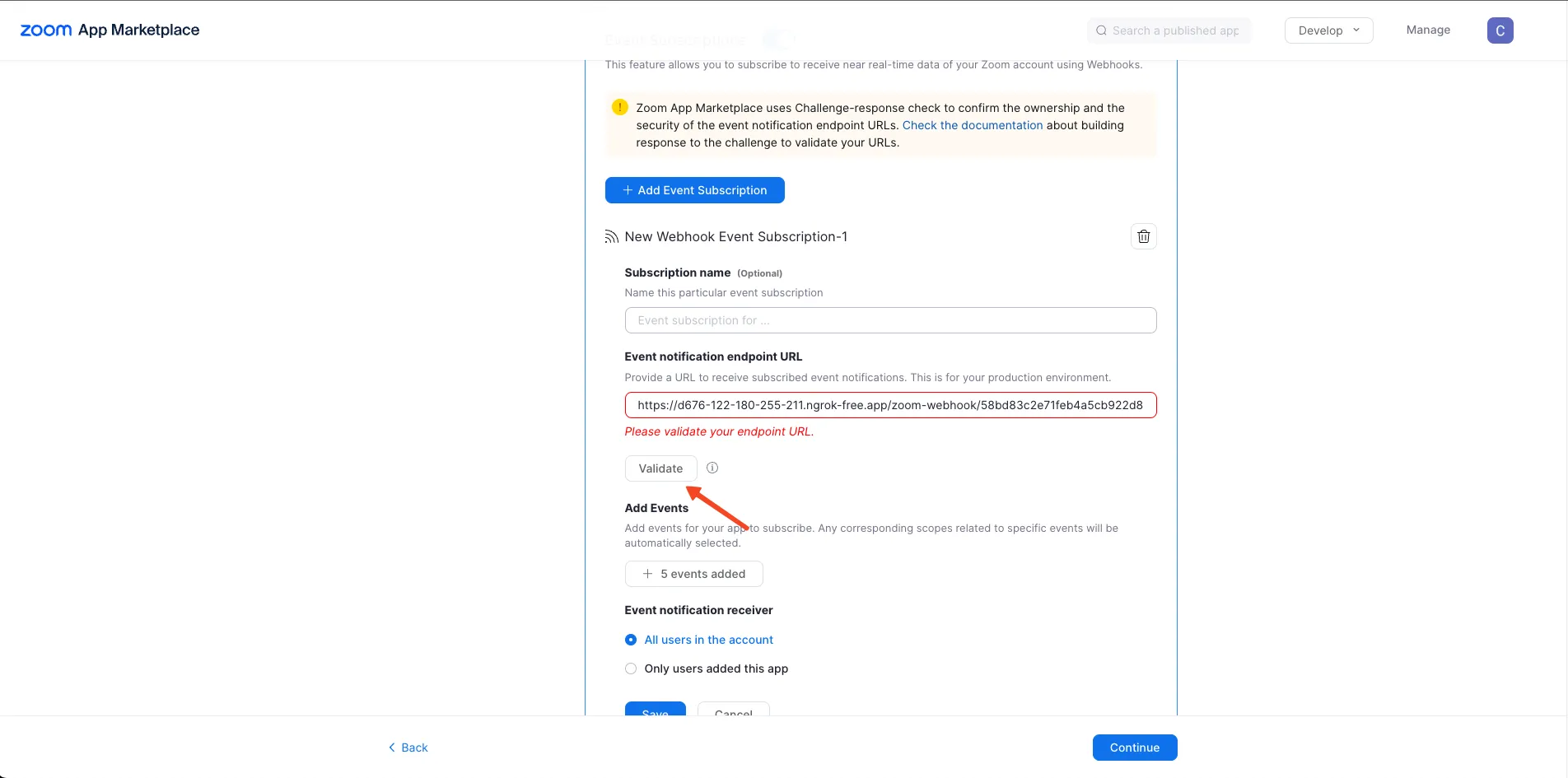
-
Click on Save
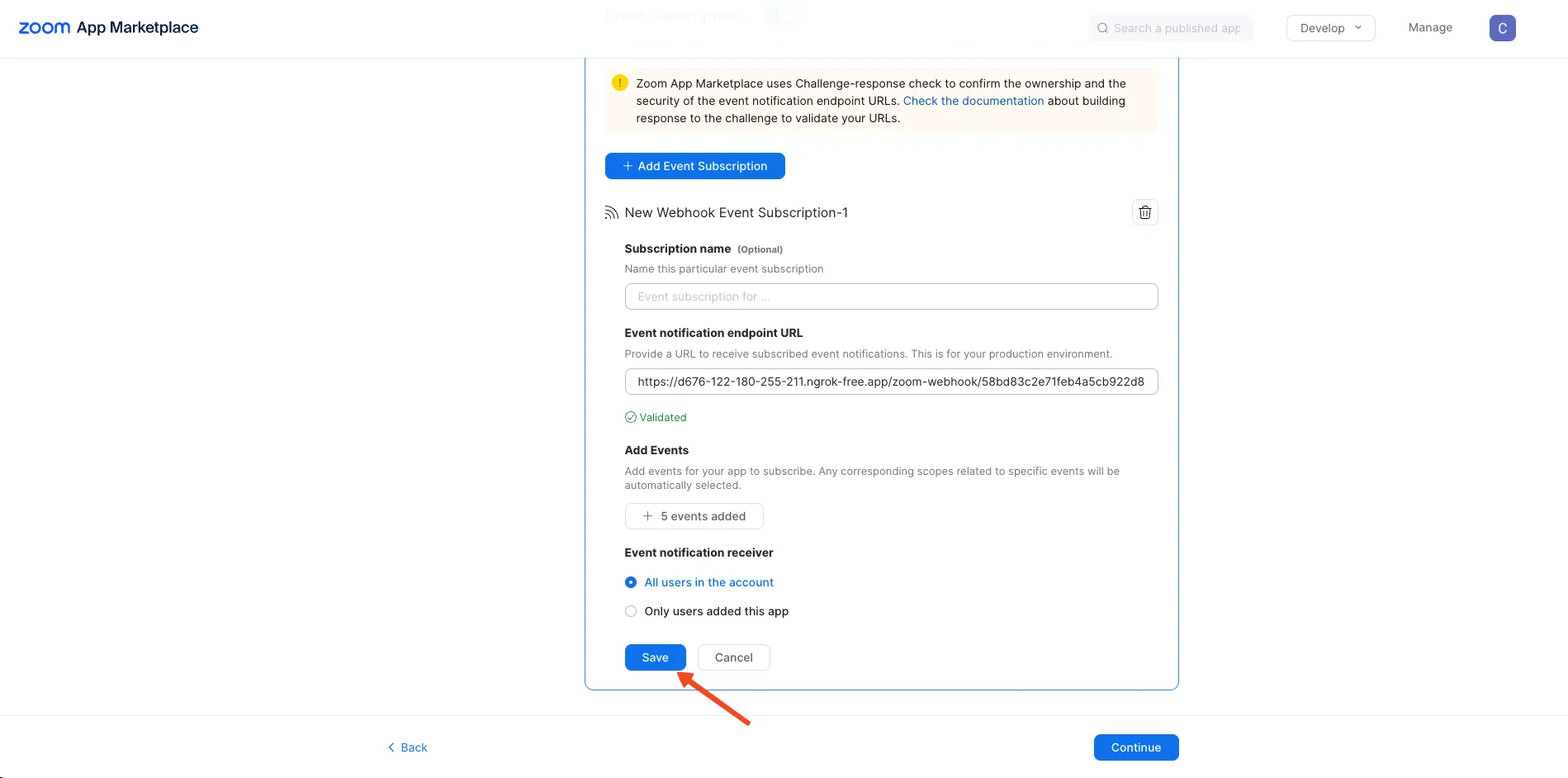
-
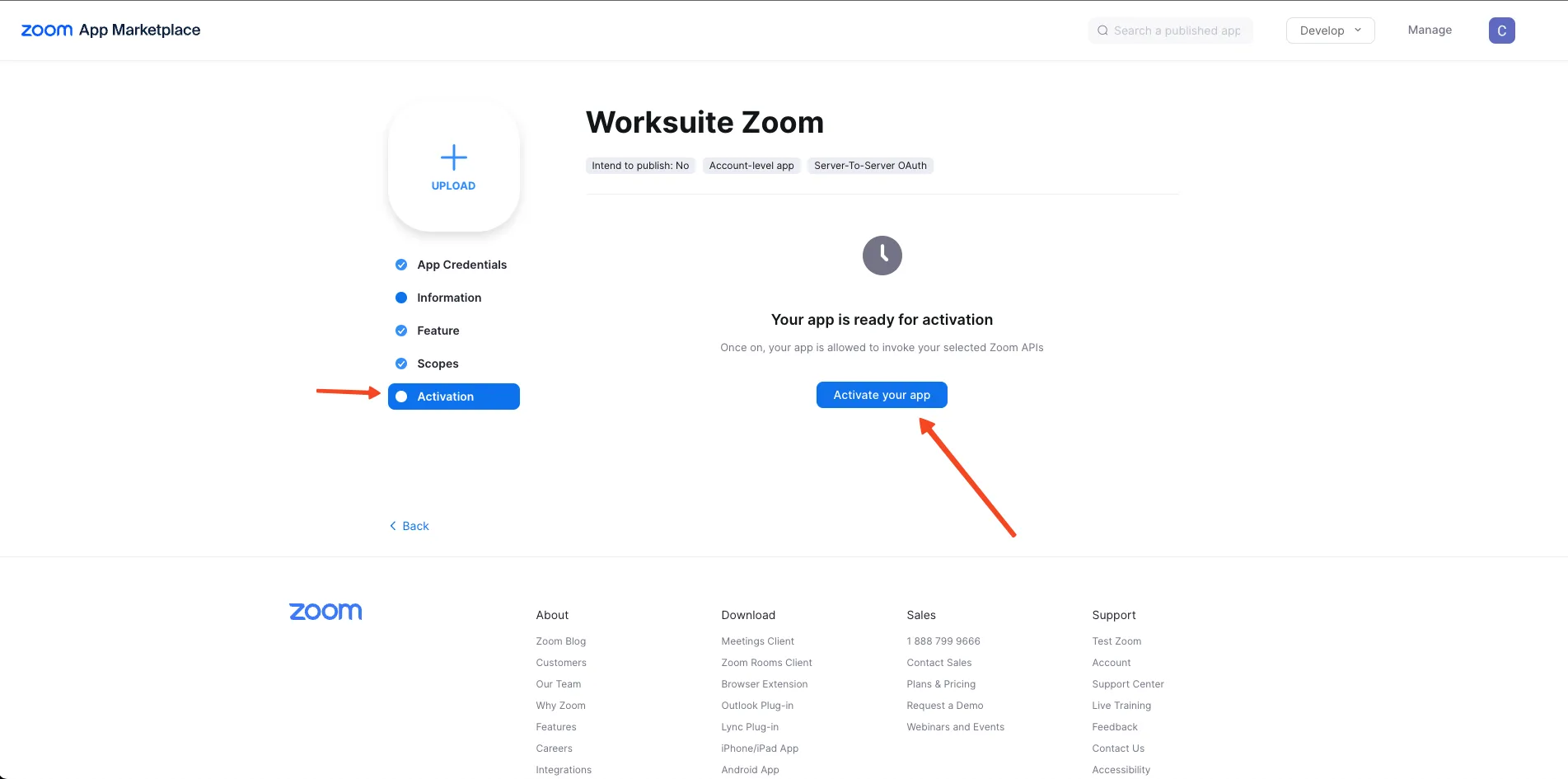
Open Activation and Click on Activation
-
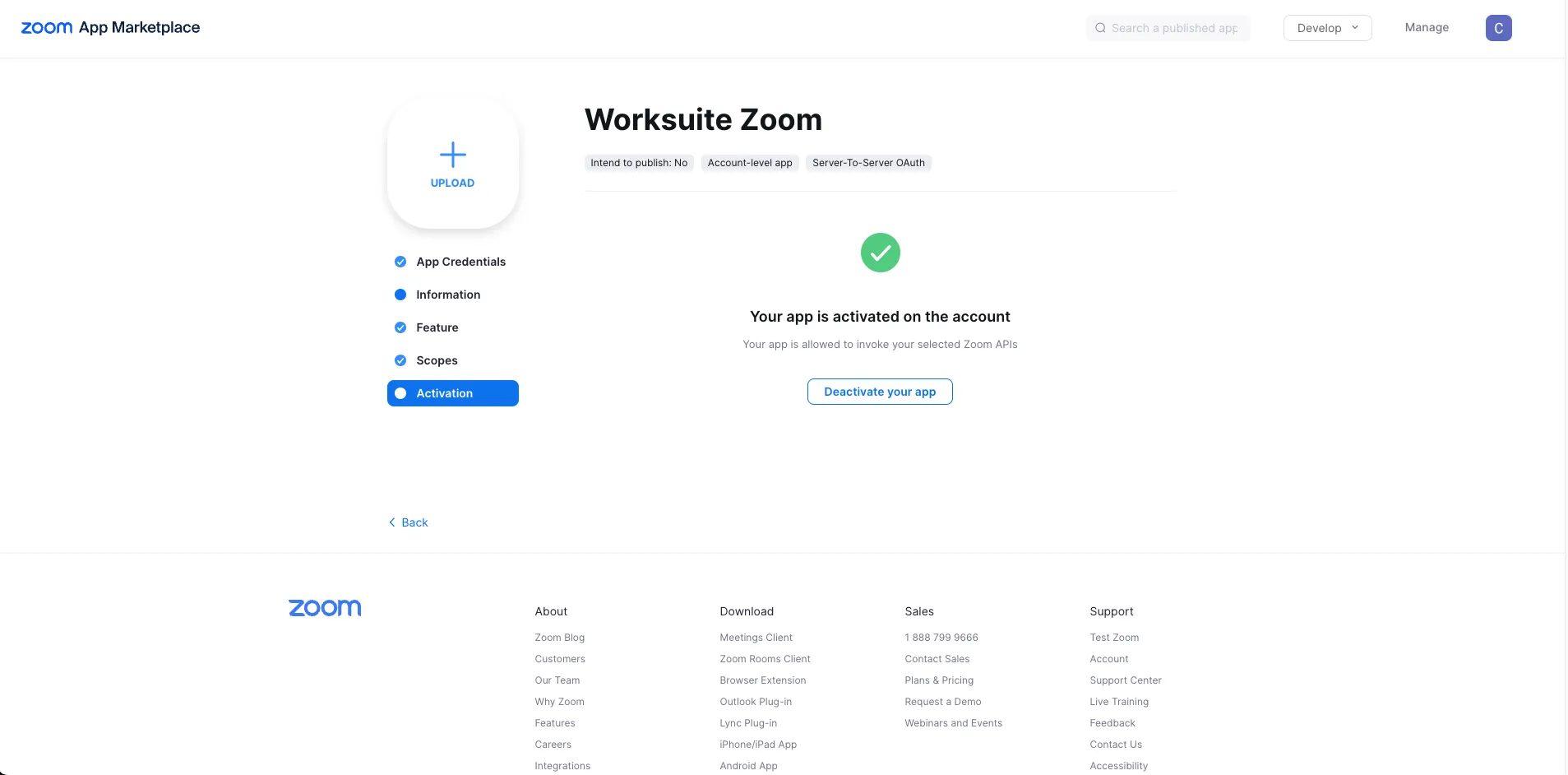
Now your app is activated
-
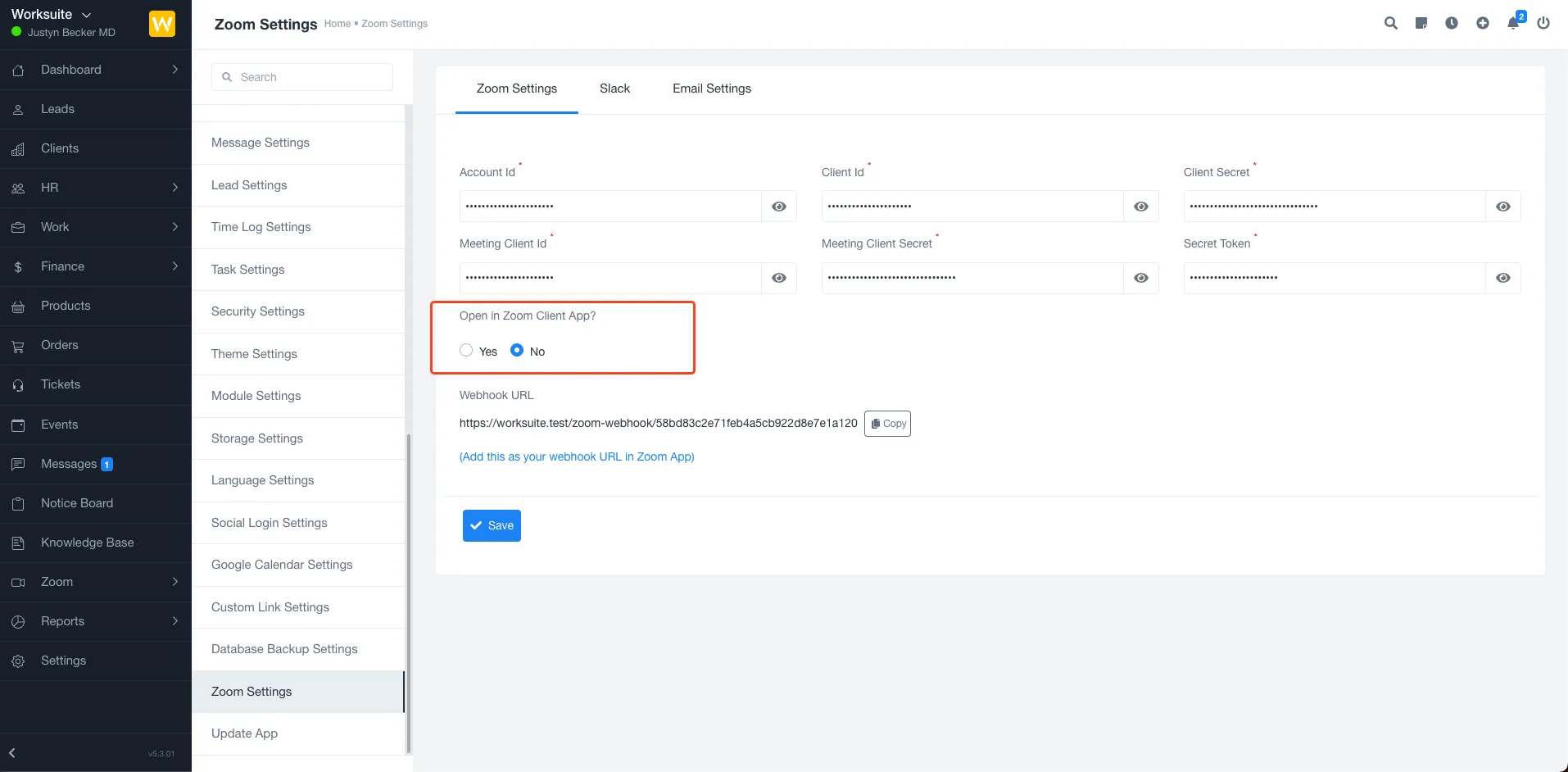
Set value for Open in Zoom Client App?
a. Yes - This will start the meetings in the zoom app installed on your system
b. No- This will start the meetings within the worksite application using zoom web SDK
Click the Save button
-
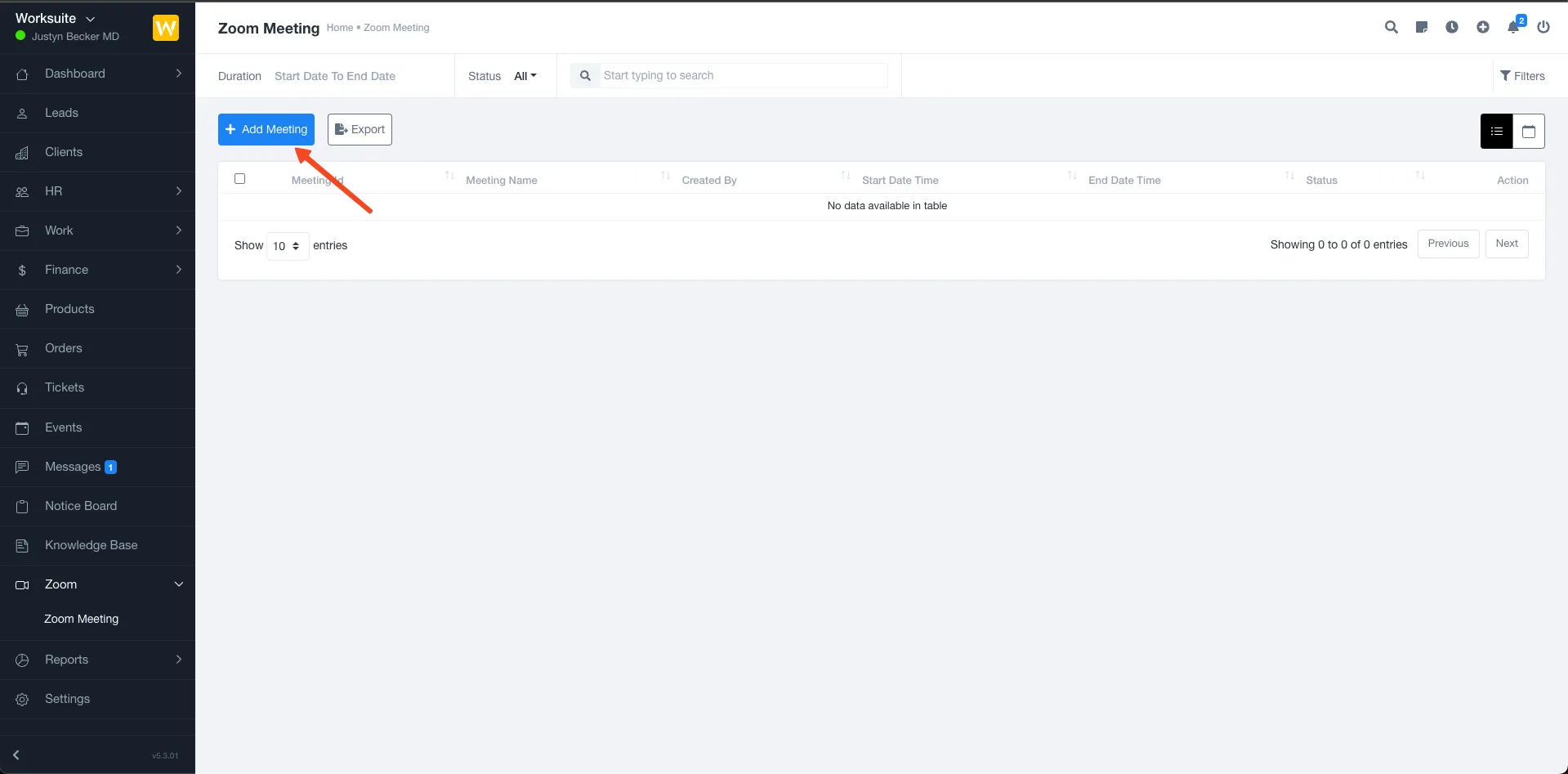
That’s It! You can go to zoom meetings and create zoom meetings.
document.querySelectorAll(‘.portal-attachment-thumbnail-img’).forEach(function(img) {
img.addEventListener(‘error’, function () {
attachment_error_image(this);
});
});
const attachment_error_image = (attachment) => {
const parentElement = attachment.parentElement;
const defaultIcon = <span class="icon-file-empty"></span><span class="fw-attachment-ext">${escapeHtml(attachment.dataset.extension)}</span>;
parentElement.innerHTML = defaultIcon;
};